Sign-Up
This page walks through the self-service sign-up flow a new organization uses to create its own tenant on BeTalent — internally also called "Form B2B." For a short introduction, see Sign-Up — Overview.
Step 1 — Fill in the "Sign up" form
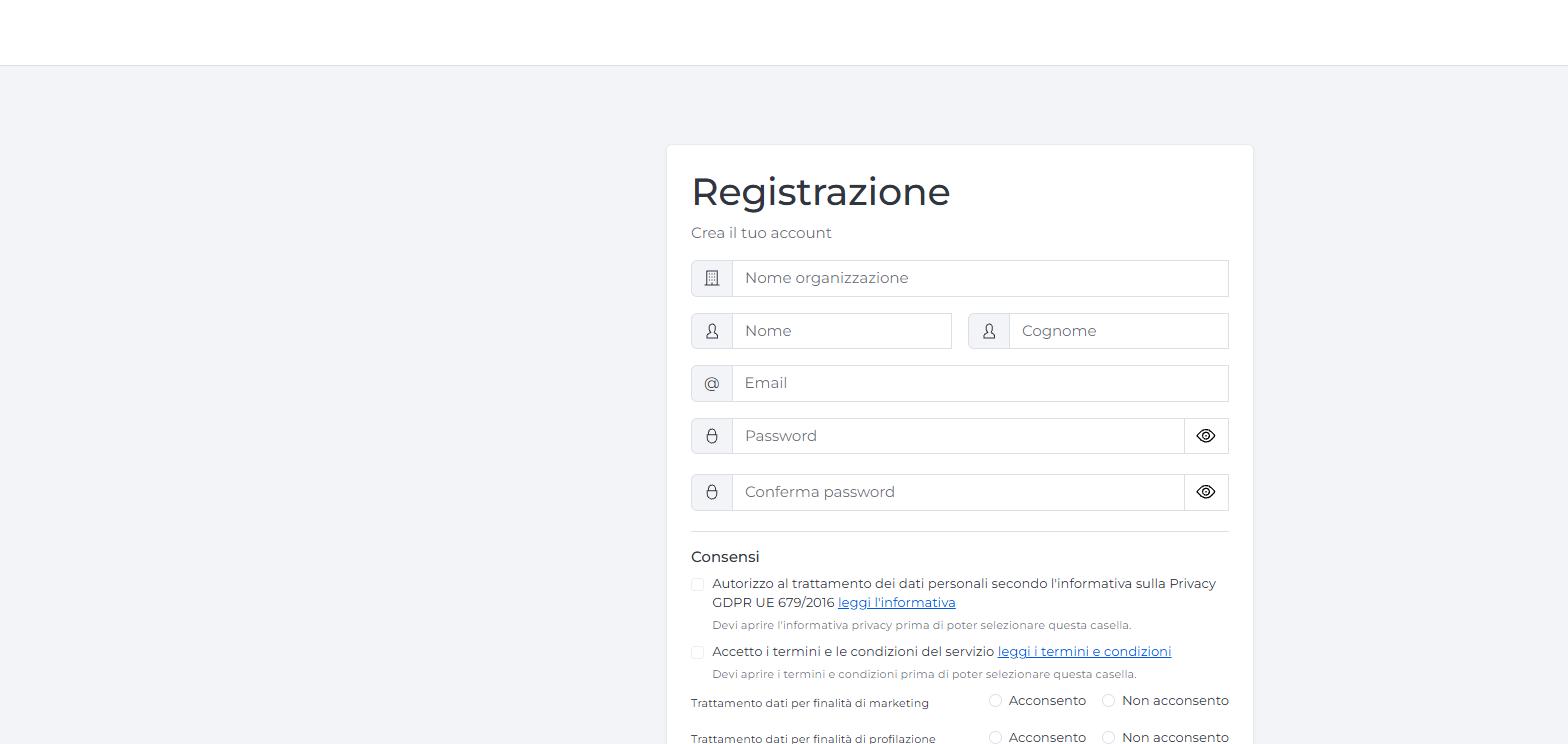
Enter: organization name, first name, last name, email, password, and confirm password.
Password requirements: at least 8 characters, with at least one uppercase letter, one lowercase letter, one number, and one symbol.
Step 2 — Consents
Before you can submit, you must:
- Open "read the privacy notice" — the "I authorize the processing of personal data..." checkbox stays disabled until you do.
- Open "read the terms and conditions" — same rule for the "I accept the service terms and conditions..." checkbox.
- Check both boxes.
- Pick I consent or I do not consent for "Data processing for marketing purposes" and for "Data processing for profiling purposes" — a choice is required for both, but choosing "I do not consent" doesn't block registration.
Step 3 — Create account
Click Create account. The platform checks your email is unique platform-wide (not case-sensitive) and your organization name isn't already taken. If both checks pass, it creates your tenant, creates your user account with the Organization Admin, Tenant Admin and HR roles, and activates a Trial license for you.
If something's wrong, you'll see one of these messages instead, and nothing is created:
| Message | What it means |
|---|---|
| "User exists with different organization" | That email is already registered under another organization. |
| "Organization already exists" | That organization name is already taken. |
| Required-field message | A field or a consent is missing — check the form for what's still empty. |
| Password policy message | Your password doesn't meet the requirements above. |
Step 4 — Confirm registration (OTP)
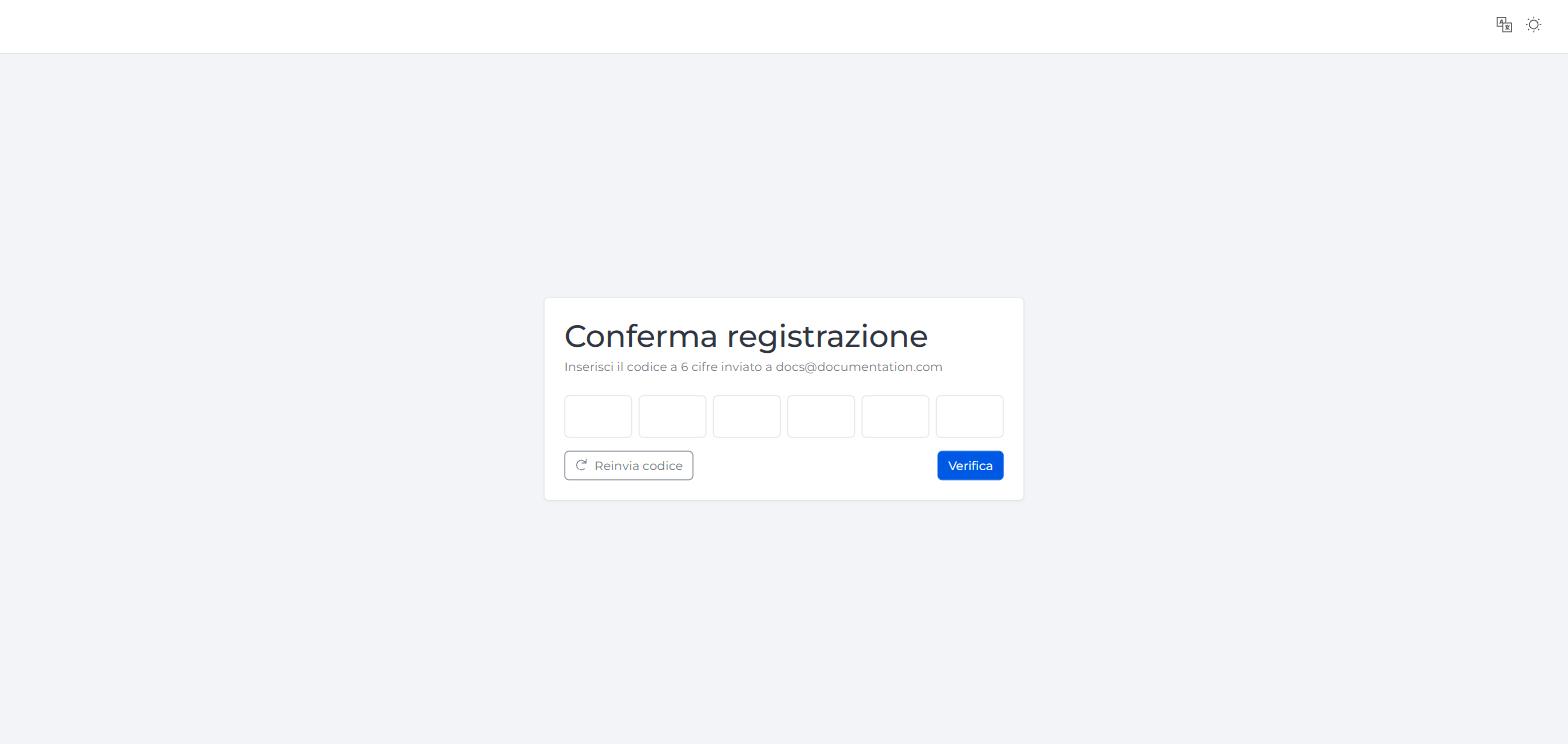
After a successful submit, you land on Confirm registration, and a 6-digit code is sent to the email you registered with. Enter it in the six boxes and click Verify to complete registration — you can request a new code with Resend code if needed. You're not logged in automatically at this point — you still need to log in afterward.
Step 5 — Log in
Once you've confirmed the OTP, log in with your new credentials. You'll land on the Dashboard with your new tenant selected and your Trial license active.
Related
- Sign-Up — Overview — roles, fields and rules in detail.
- Roles & Permissions — what each of the three roles assigned here can do.
- Dashboard — what you'll see right after your first login.