Billing Data
This page explains how to enter and update your tenant's billing data, used to generate invoices when you purchase a package (invoicing is handled internally, not by Stripe). For an introduction to the purchase flow as a whole, see Catalog — Overview.
Where to find it
Click the profile icon in the top right, then Billing Data in the Account menu.
What you'll see
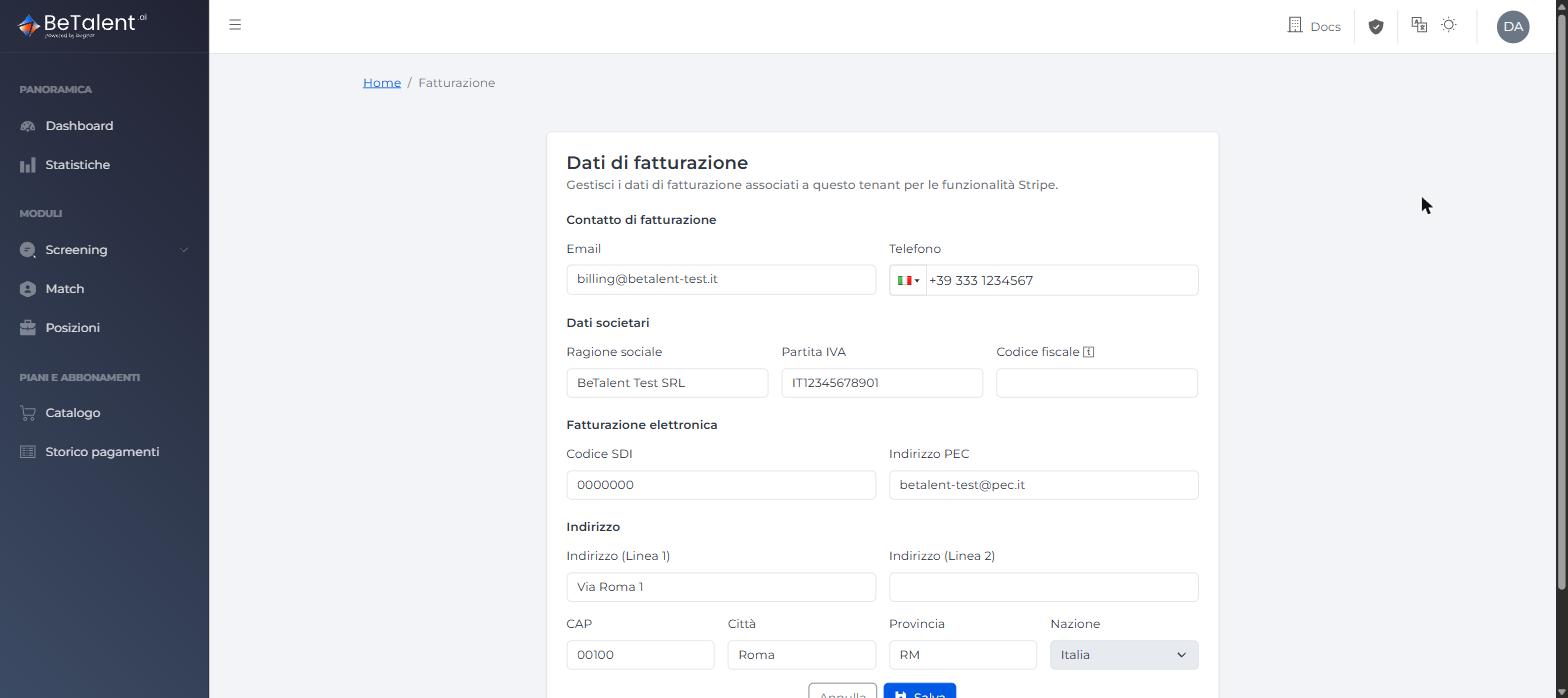
The Billing Data page is organized into four sections:
- Billing contact — Email and Phone used for billing.
- Company data — Legal name, VAT number and Tax code. The Tax code is only required for sole proprietorships and freelancers; for companies (SRL, SPA, SNC, SAS) it matches the VAT number and can be left blank.
- E-invoicing — SDI code and PEC address, needed to issue an electronic invoice.
- Address — Address (two lines), postal code, city, province and country.
You can save the page even with empty or partial fields — there's no completeness check here. The real check kicks in later, when you purchase a package — see the note below.
Filling in and saving your data
- Fill in the fields you need.
- Click Save. You'll see a confirmation: "Billing data updated successfully."
Why it's worth completing before purchasing a package
When you reach the Purchase Summary for a package (see User Guide — Catalog), the Proceed to Payment button stays blocked until your billing data is complete — including, for Italian tenants, SDI code and PEC address, even though you can leave them blank here. Filling in this page ahead of time saves you from having to backtrack mid-purchase.
Related
- User Guide — Catalog — where this data is checked before payment.
- User Guide — Payment History — where you'll find the invoices generated from this data.