Screen — Uploading & Managing CVs
This page walks through uploading CVs, tracking their processing, and replacing or restoring a candidate's CV. For a high-level introduction to the module, see Screen — Overview.
Uploading CVs
From Screening → Carica CV, drag files onto the dropzone or click it to browse. Accepted formats are .pdf, .jpg, .png, .txt, .docx for individual CVs, or a single .zip archive containing several CVs.
You can select multiple individual CV files in one go, or one ZIP archive — but not both together, and not more than one ZIP at a time; the app blocks the upload with an error message if you try. Before starting, you get a summary of what you've selected (file names, types, sizes) with the option to remove any file:
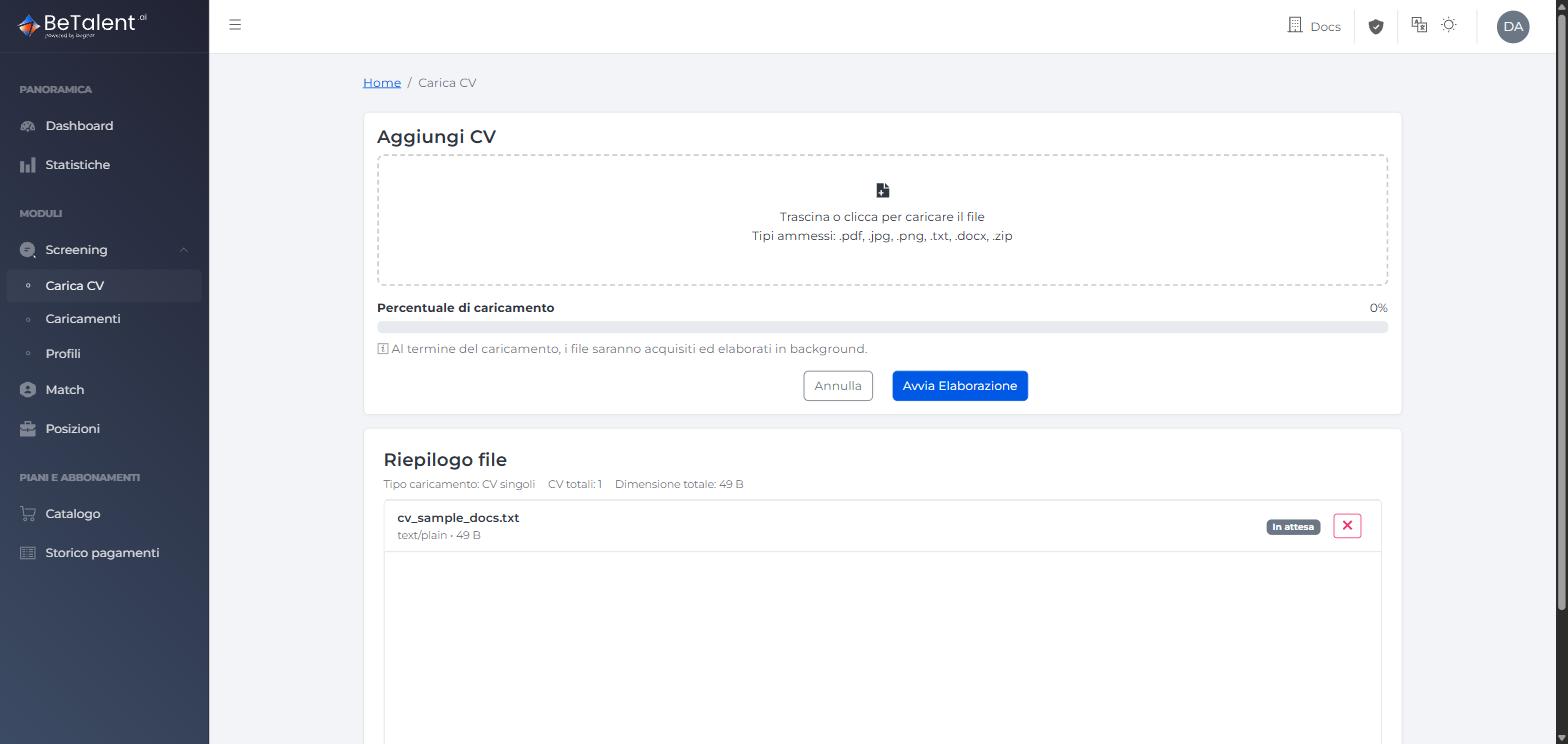
Click Avvia Elaborazione to start. Uploading and processing are two separate, asynchronous steps: once the upload reaches 100%, the app tells you the CVs will be acquired and processed in the background, so you're free to navigate elsewhere — the batch keeps working and you can check back on it later.
Tracking a Batch (Caricamenti)
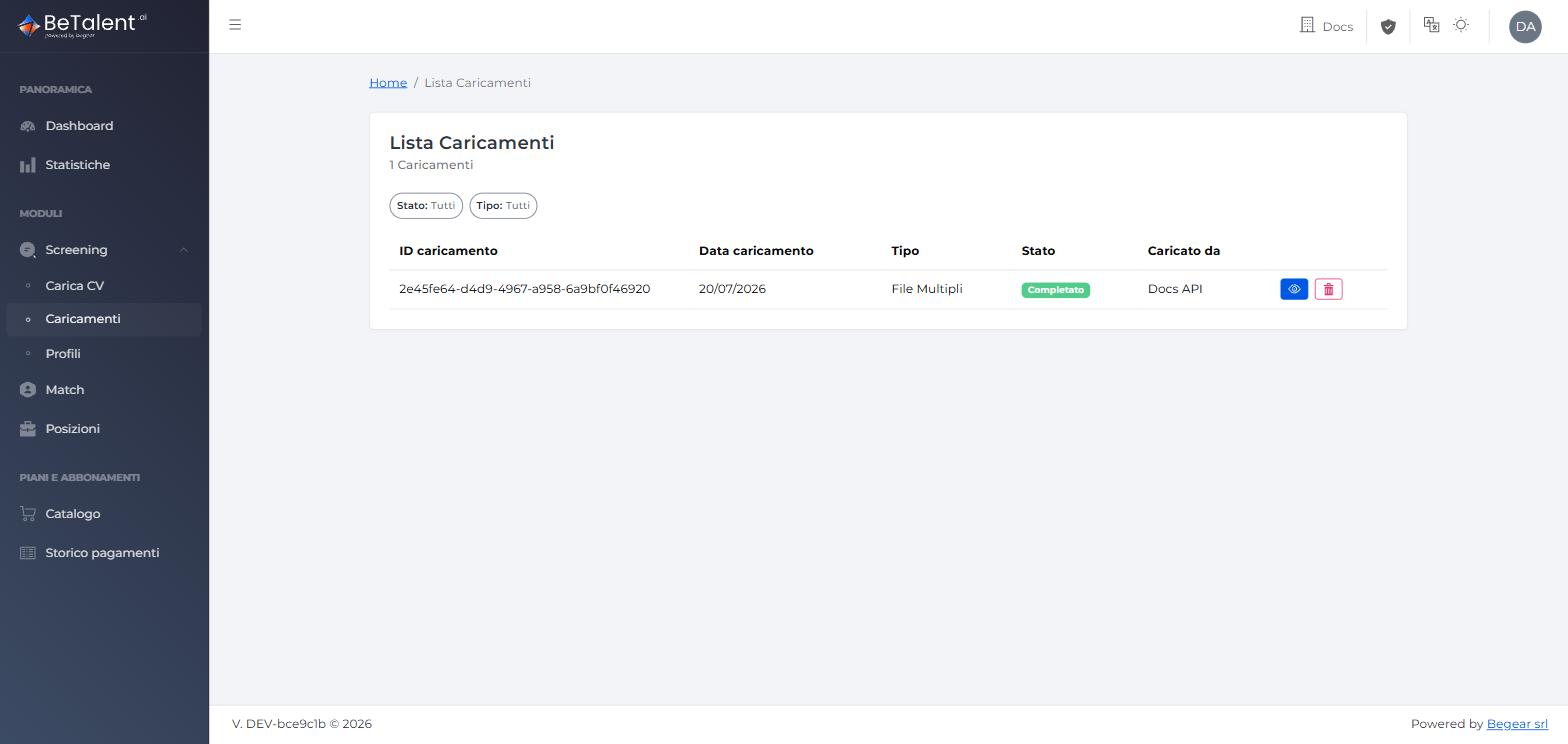
Every upload — single files or a ZIP — becomes a batch, listed under Screening → Caricamenti with its ID, upload date, type, status, and who uploaded it:
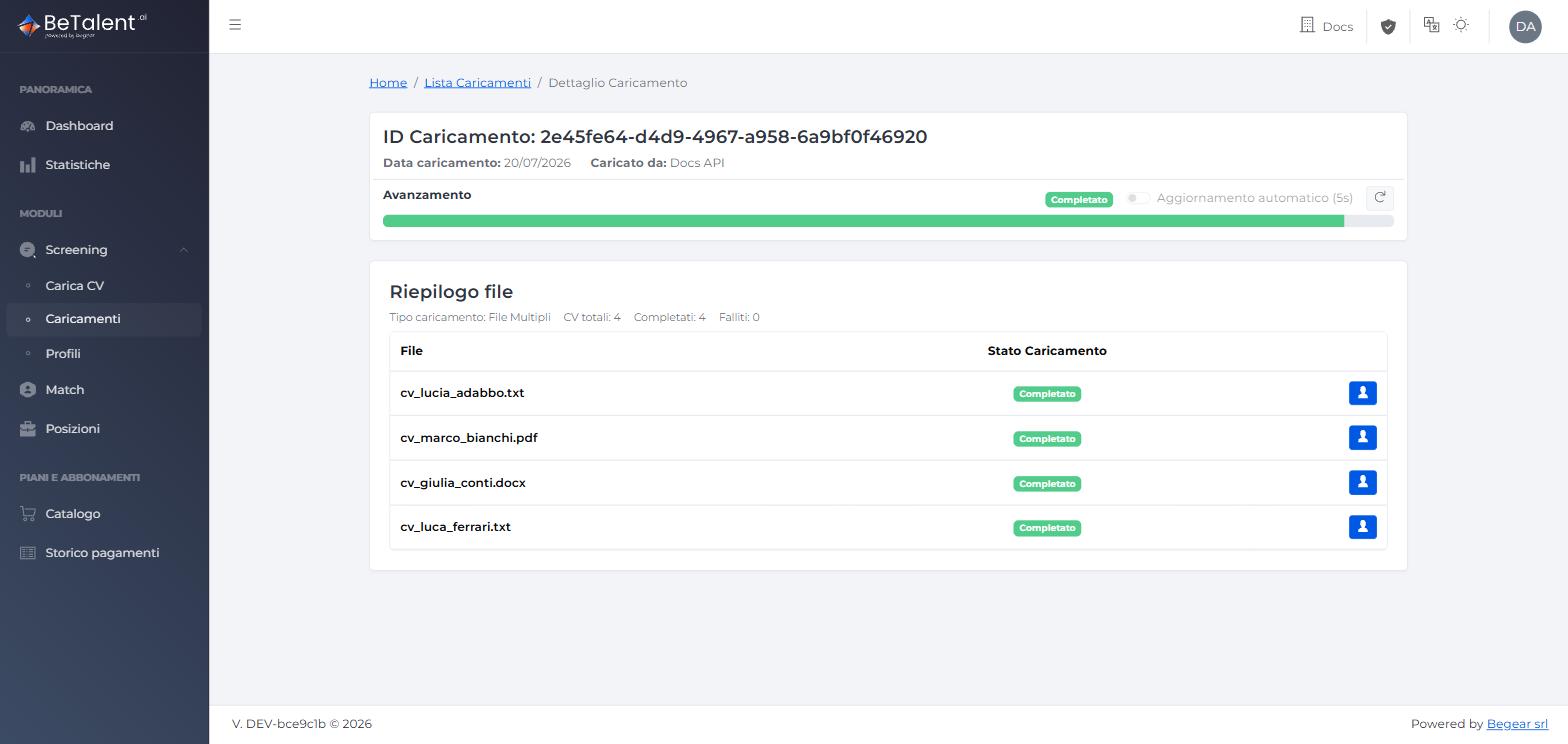
Open a batch to see its detail page: an overall progress bar with a status chip (in progress / completed) that auto-refreshes every 5 seconds (or refresh manually), and a per-file table with each CV's own status — completed files show a shortcut icon that takes you straight to the resulting profile.
For ZIP archives, extraction is best-effort: valid CVs inside are still processed even if the archive also contains invalid files, and the app is documented to warn you about which entries couldn't be processed.
Replacing a CV from the Profile List
To update a specific candidate's CV, go to Screening → Profili, find their row, and click the upload icon to expand an inline dropzone for that row only:
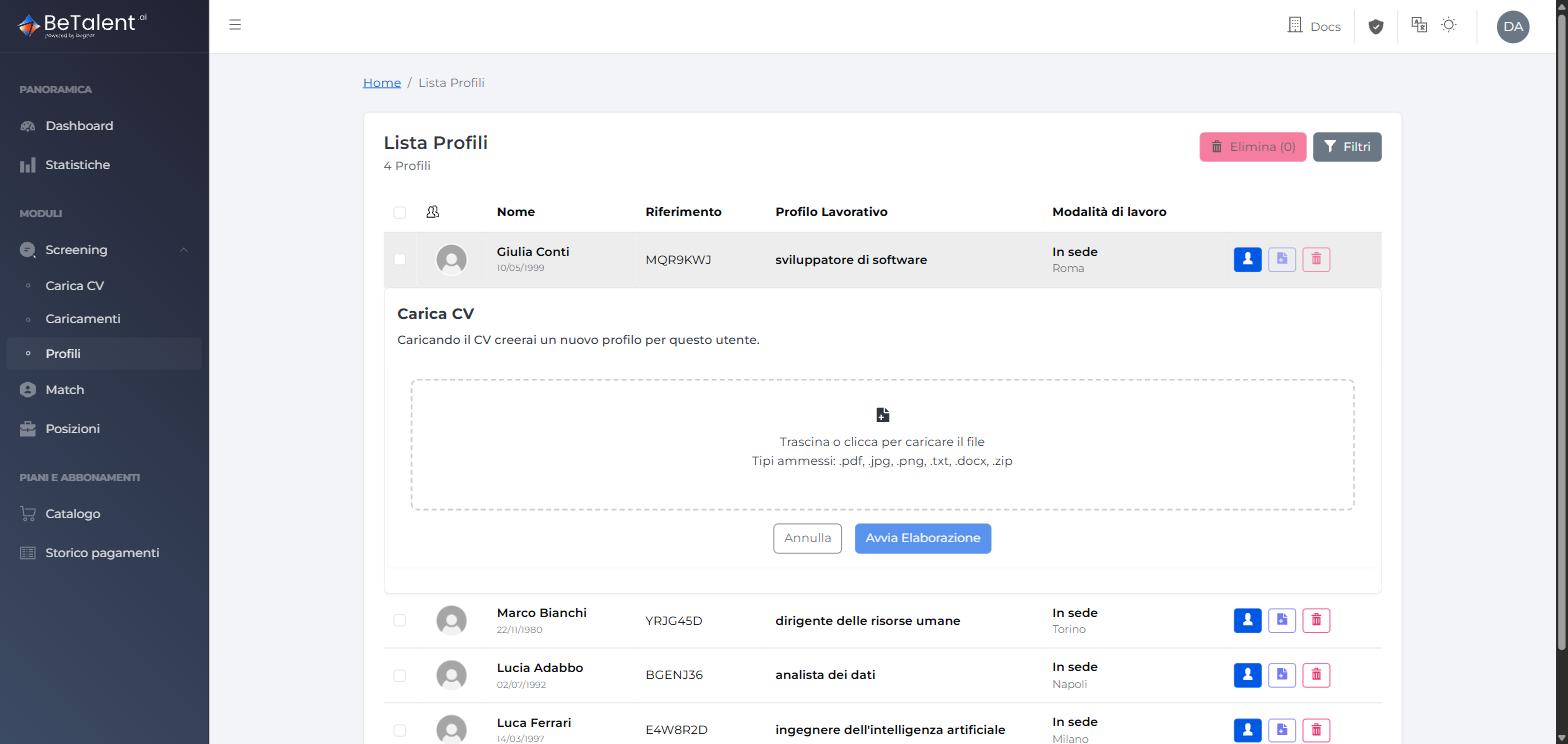
The app is explicit about what happens next: uploading here creates a new version tied to the same candidate rather than a separate entry in the list — the row count in Profili doesn't change, but a new version is added to that candidate's history and becomes the active one. See Browsing & Managing Profiles — Version History for how to review or roll back to an earlier version.
Related
- Screen — Overview — what the module does and how it fits with Match.
- Screen — Browsing & Managing Profiles — searching the profile list, reading a candidate's detail page, and managing CV version history.