Job Position
This page walks HR users through creating a job position, configuring its matching criteria, and managing the candidates associated with it. For a high-level introduction to the module, see Job Position — Overview.
Creating a Position
From the Positions menu, click Create position. You can get the position two ways: have the AI generate it from a text description, or fill in the fields by hand.
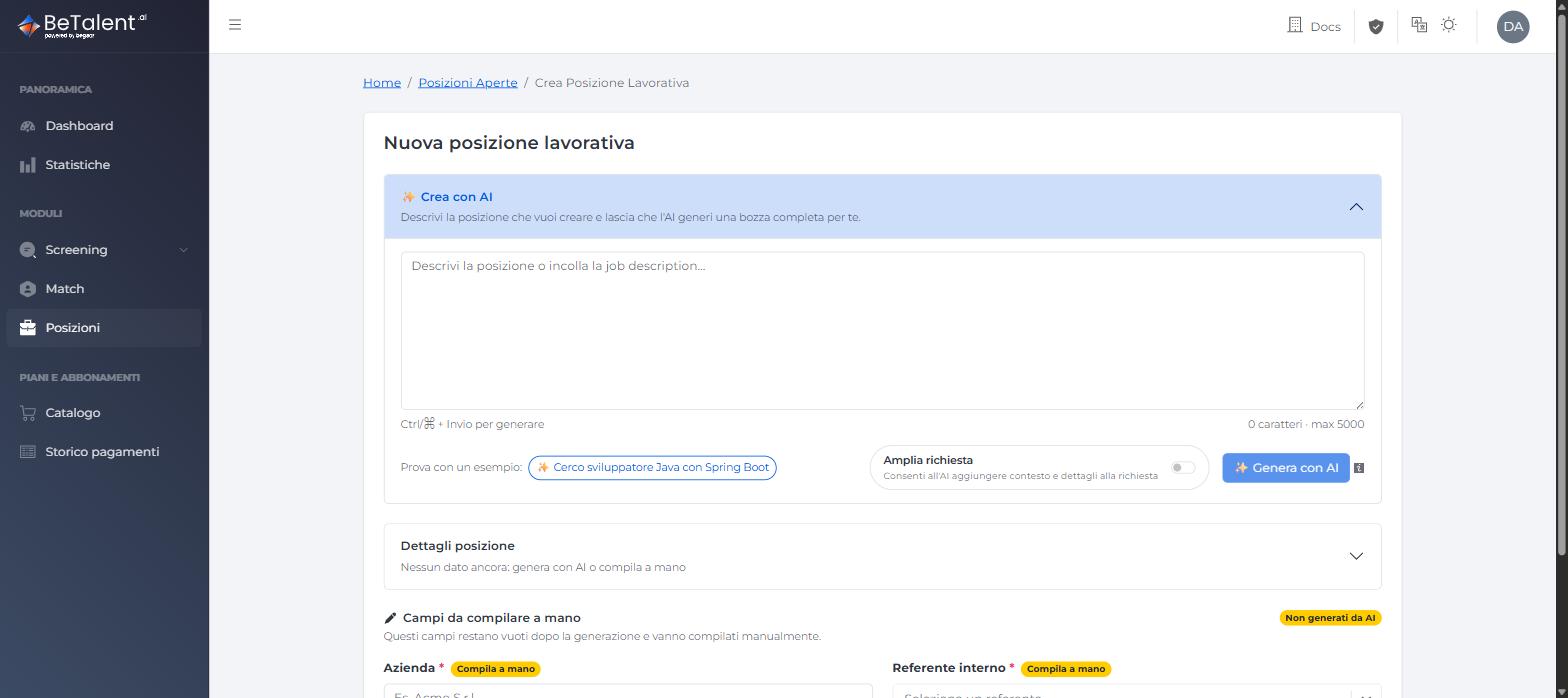
Generating the position with AI
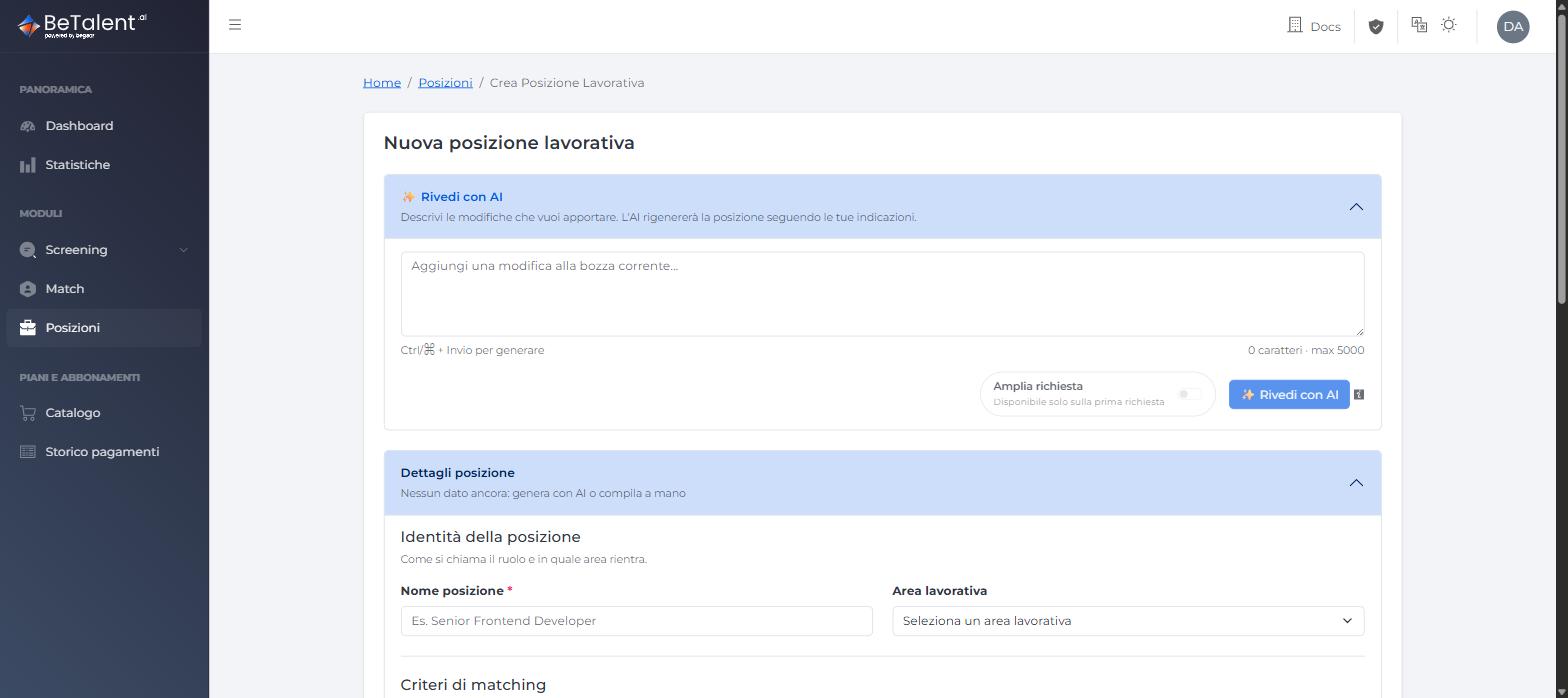
In the Create with AI box, describe the position in the text box (you can also start from the suggested example). Turn on Expand request if you want the AI to enrich your request with additional detail before generating the position, then click Generate with AI.
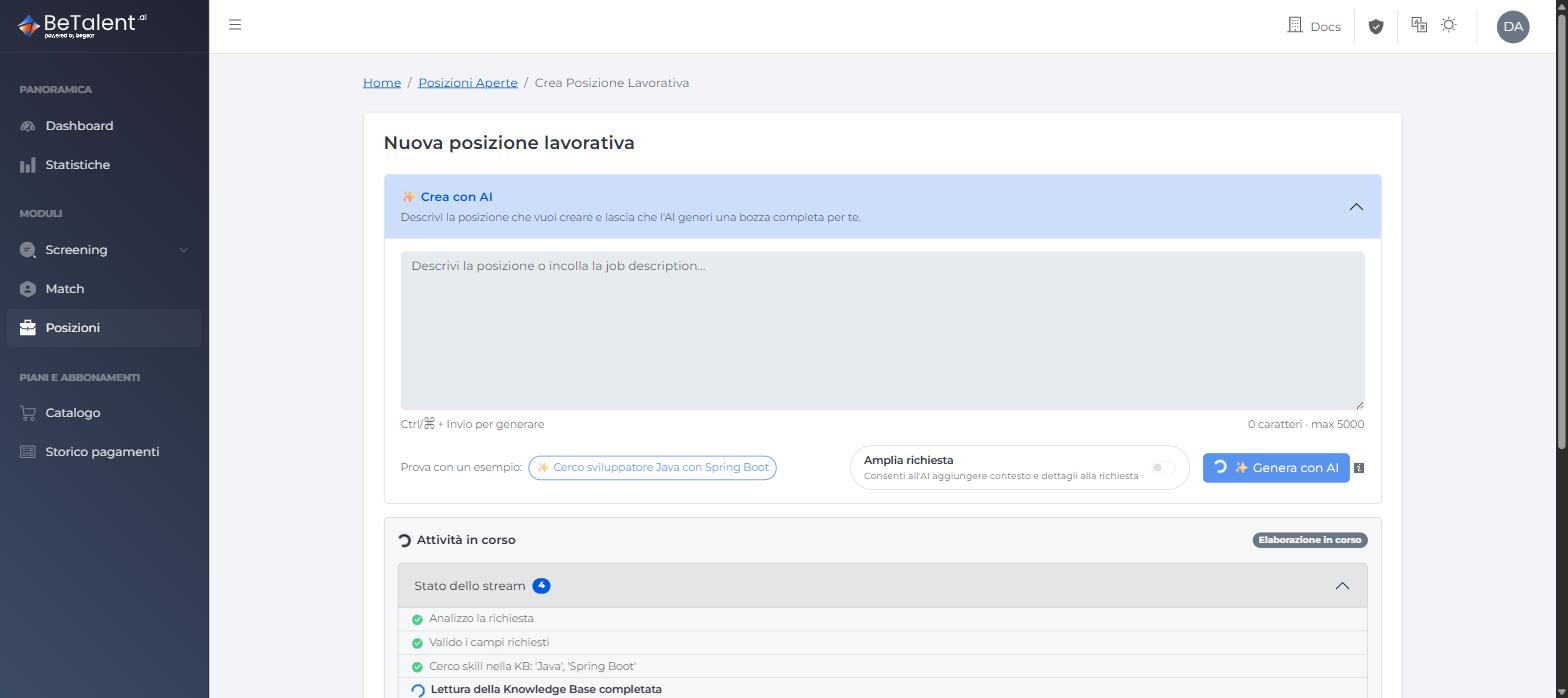
While it's processing, an Activity in progress panel shows the agent's step-by-step progress (analyzing the request, validating the fields, searching skills in the Knowledge Base, etc.).
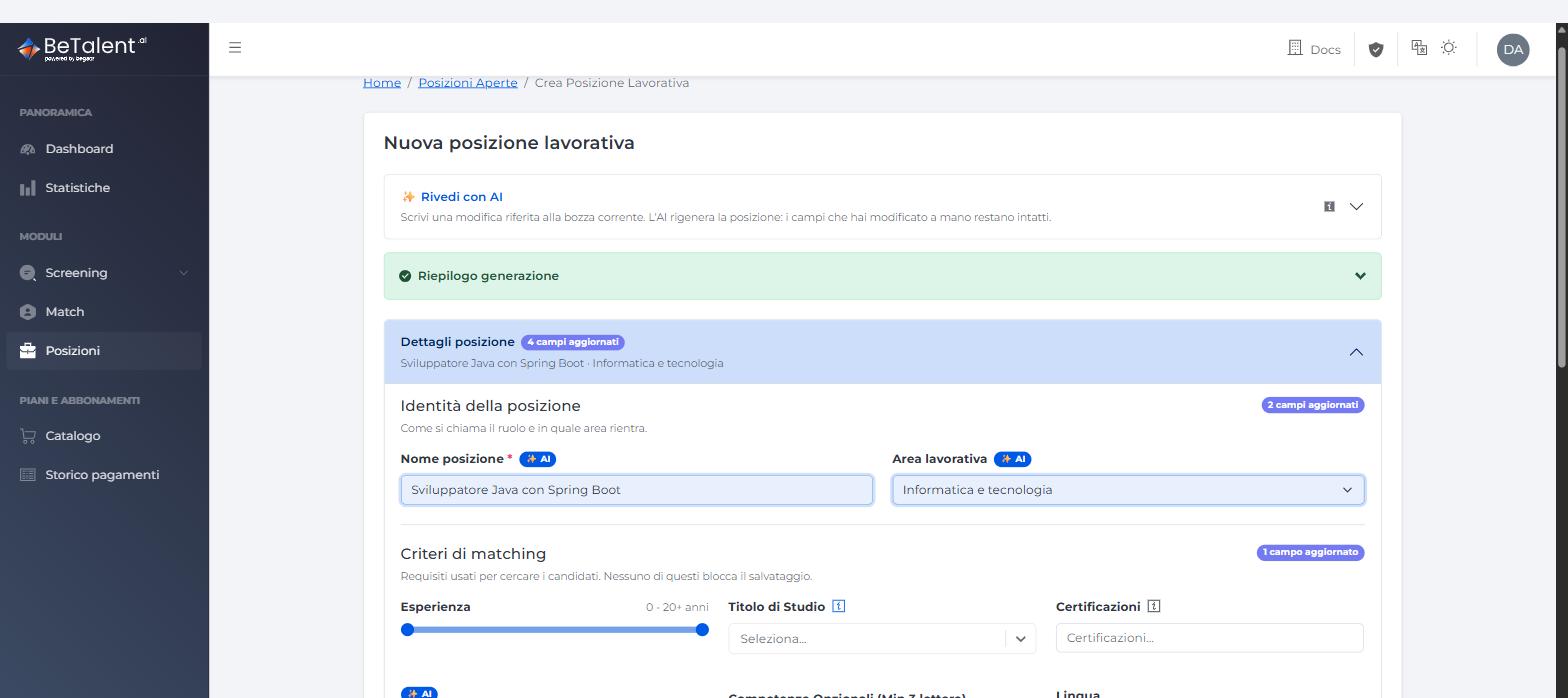
Once generation completes, the box collapses and becomes Review with AI, the Position details panel opens automatically showing the populated fields (each tagged with an AI badge), and a Generation summary shows how many fields were updated per section. The AI generates Position name, Job area, the Matching criteria, and the Position description.
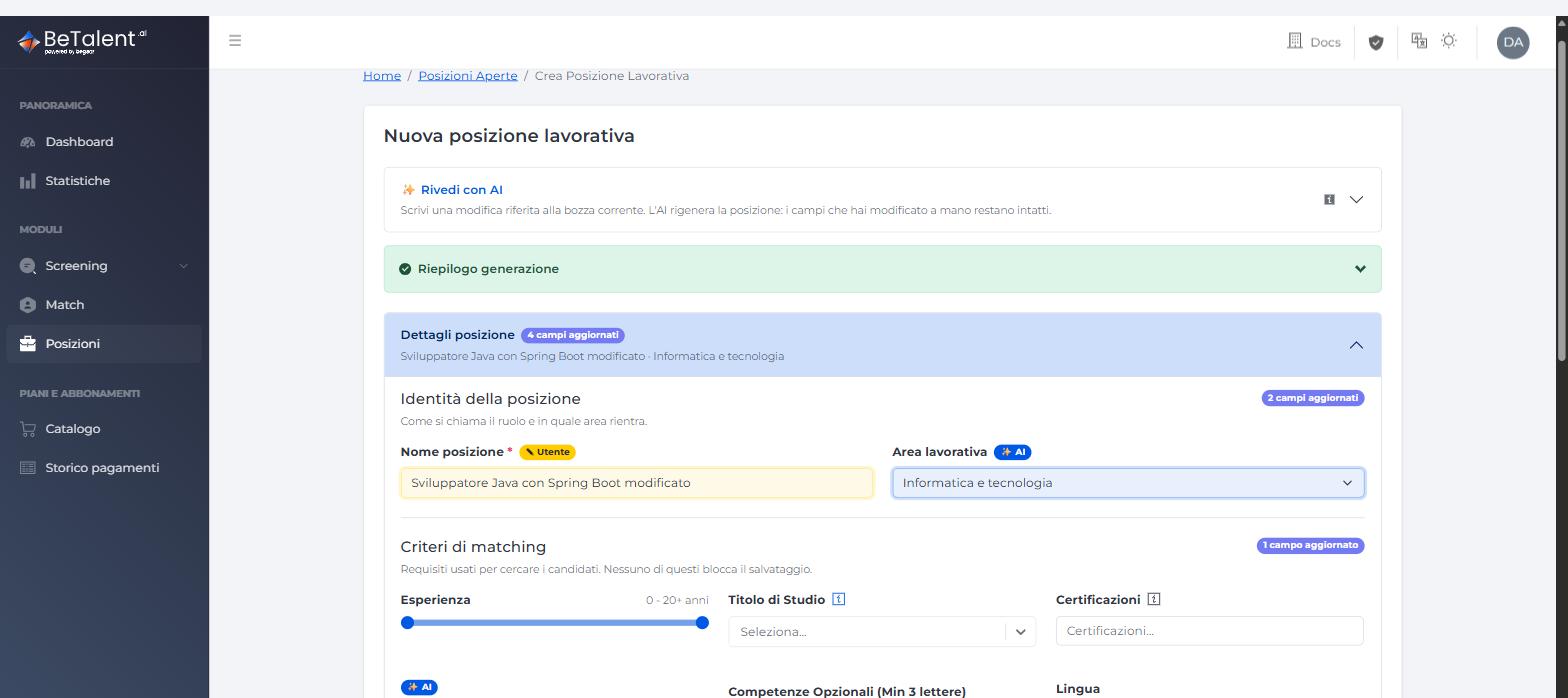
Review with AI isn't conversational: it has no memory of previous requests. Every time you write a new instruction and generate, the AI recomputes the position from scratch applying the requested change, but leaves any field you've already edited manually untouched. If you manually edit a field the AI generated, its badge switches from AI to User to flag that the value has been overwritten.
Alternatively, you can skip Create with AI and fill in the Position details box directly by hand.
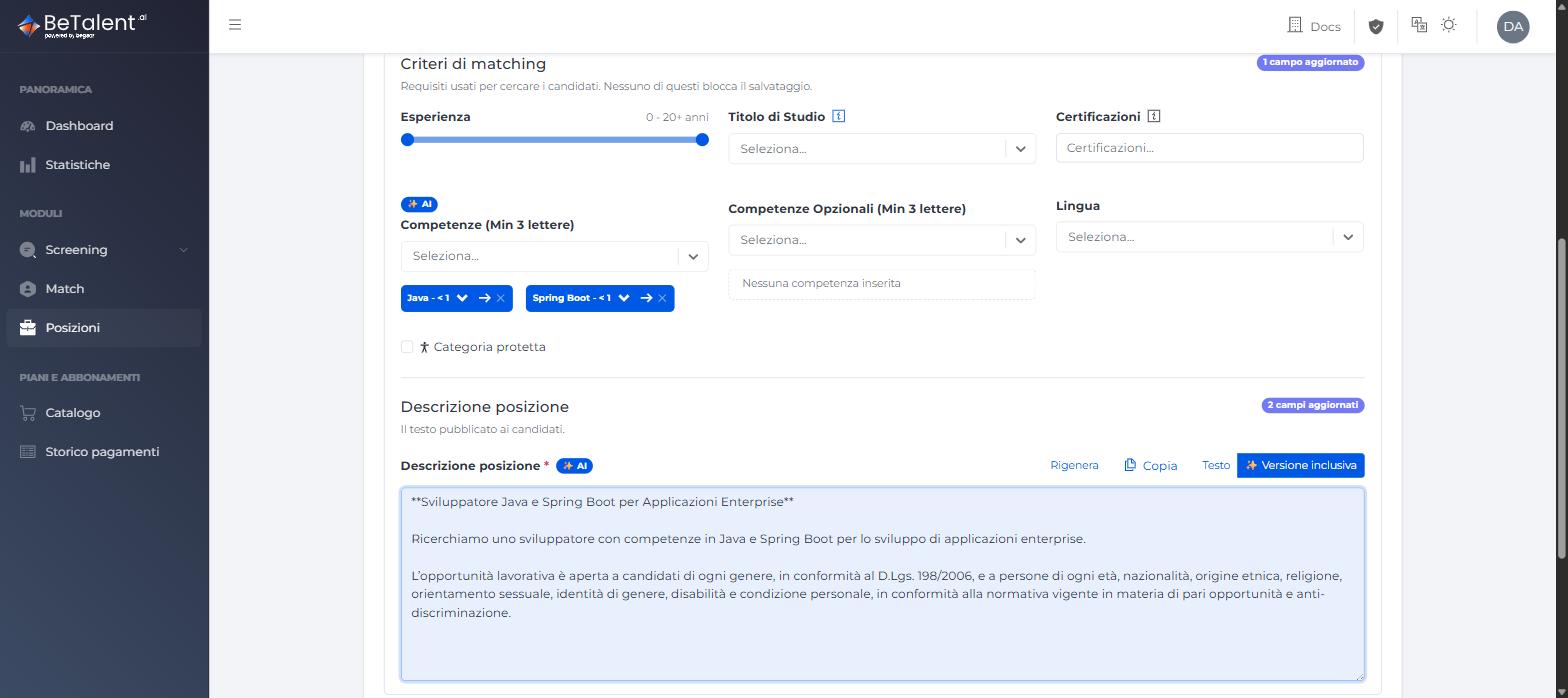
Inclusive version of the description
On the Position description — whether AI-generated or written by hand — you can click Inclusive version and then Generate inclusive version to get a rewording of the text meant to avoid discriminatory language in job postings (references to gender, age, and other protected characteristics), in line with applicable equal opportunity regulations. The original Text and the Inclusive version stay available on two separate tabs, and you can regenerate the inclusive version if you're not happy with it.
Position fields
| Field | Required | Notes |
|---|---|---|
| Position name | Yes | Can be generated with AI |
| Job area | No | Can be generated with AI |
| Position description | Yes | Free text, can be generated with AI |
| Matching criteria | Yes* | *At least one — can be generated with AI, see below |
| Company | Yes | Free text, always filled in manually |
| Internal referent | Yes | Pick an HR user of your tenant, always filled in manually |
Company and Internal referent are never filled in by the AI: they always need to be entered manually, whether you generate the position with AI or fill it in entirely yourself.
Matching criteria available:
- Experience — a single "years of experience" range slider (e.g. 0–20+ years)
- Education Type
- Certifications
- Skills (min. 3 characters to search) — each added skill gets its own optional seniority requirement (Indifferent, 1+, 2+, ... years)
- Skills Nice to Have (min. 3 characters) — doesn't filter candidates out, only contributes to scoring
- Language
- Protected category (checkbox)
Every criterion you fill in also shows up in the Score priority list: drag criteria into the order that matters most to you to control how each one's weight is distributed when scoring candidates. It's the same priority list available in Match — Searching Candidates. Once the position has a type (Ranking or Affinity), criteria and priority follow different editing rules — see Editing criteria after the first association.
Besides Create position, you can also Save as draft — draft positions aren't included in searches until published. Once created, a position's status is one of Draft, Open, or Closed; you can change it later from the position list.
Finding the Position List
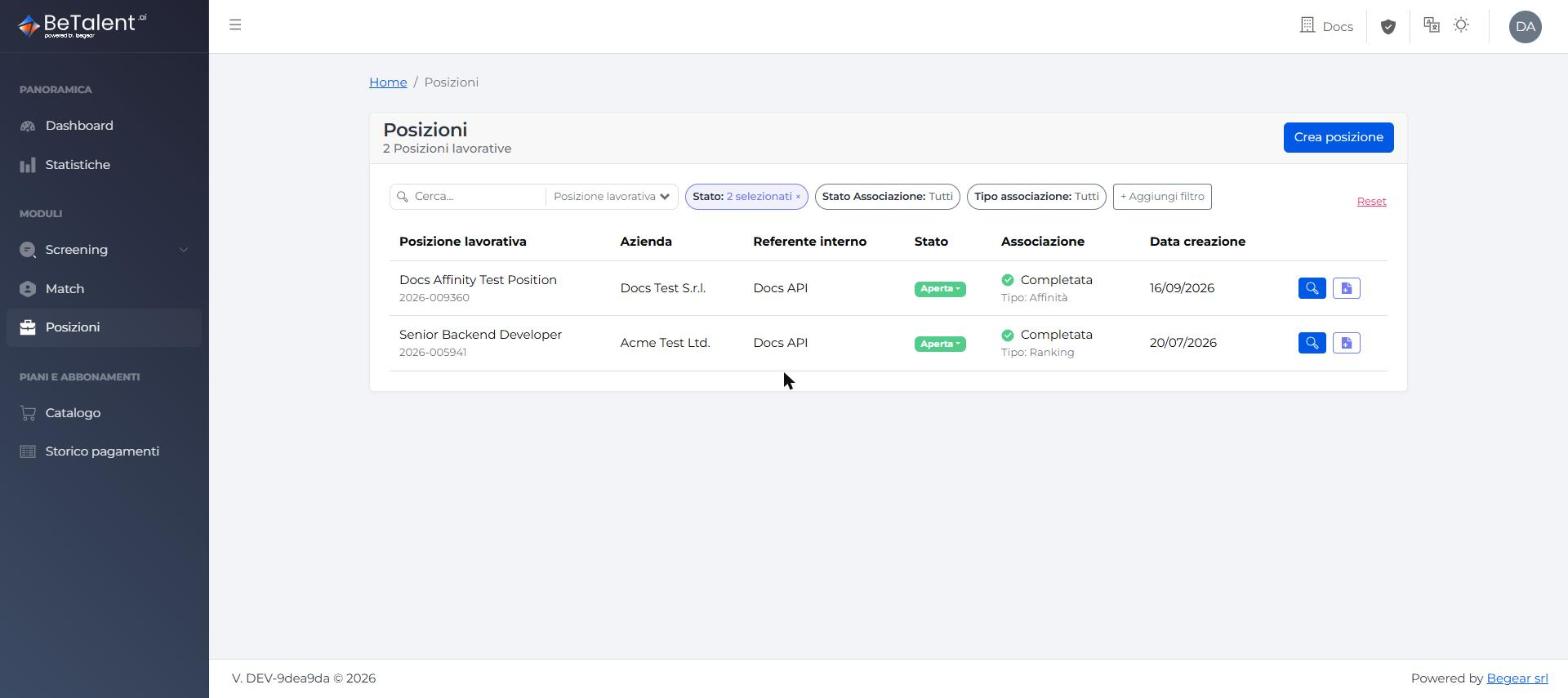
The position list ("Open Positions") shows every position in your tenant. Each row shows the position name with its
auto-generated reference underneath (format yyyy-000000, e.g. 2026-005941), plus company, internal referent,
status, association status and association type (Ranking or Affinity, once assigned), and creation date. Use
the search box and the Status / Association Status / Association Type / other filters above the table to narrow
results. From any row you can also click Use as template to create a new position from it — see
Duplicating a position.
Position Detail
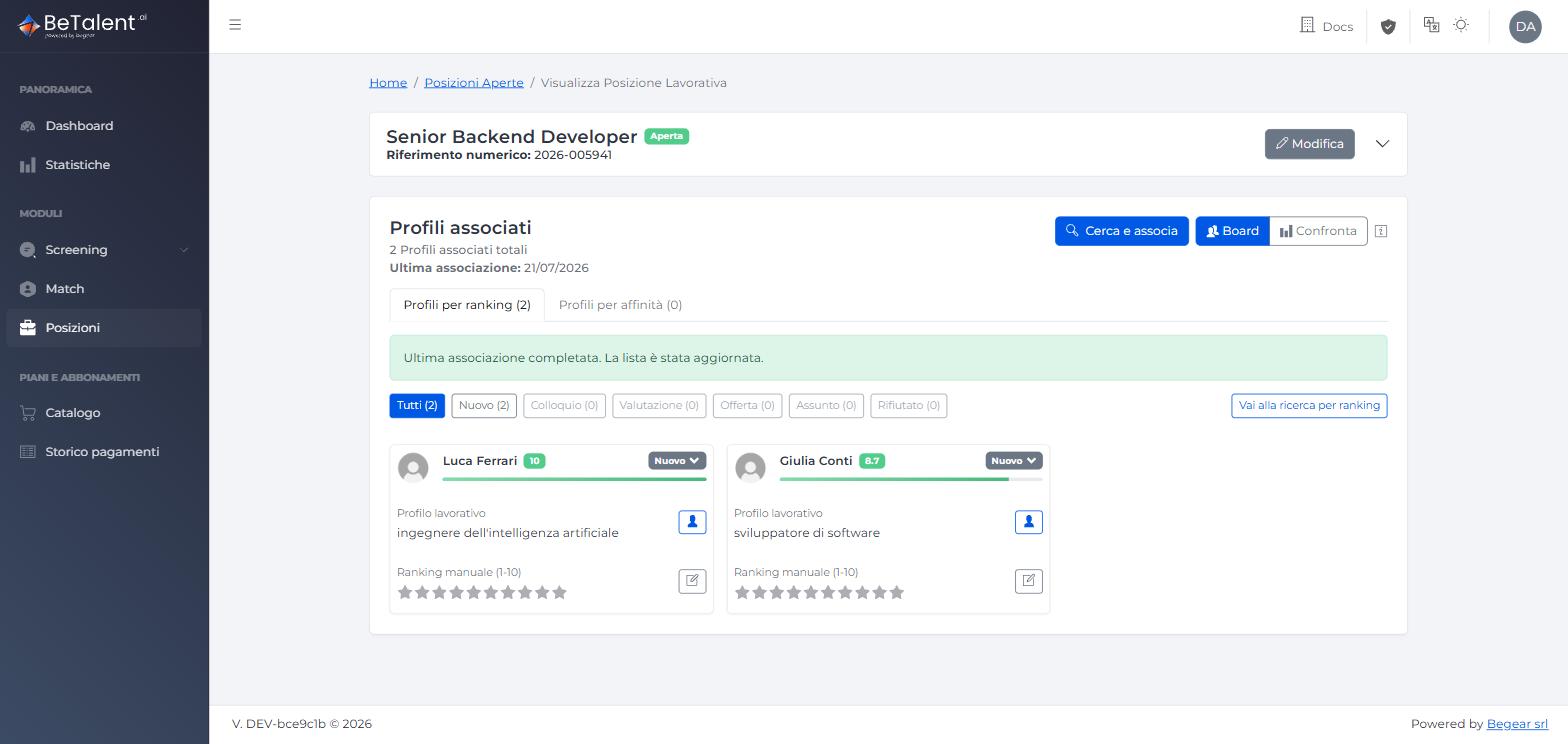
Opening a position shows its full anagraphic data and matching criteria, its Type of association (Ranking or Affinity, shown next to its status only after the first association completes), plus an Associated profiles section where you search for and manage candidates.
Searching & Associating Candidates
A newly created position doesn't have a type yet: from the Associated profiles section of its detail page you can freely choose how to associate the first candidates.
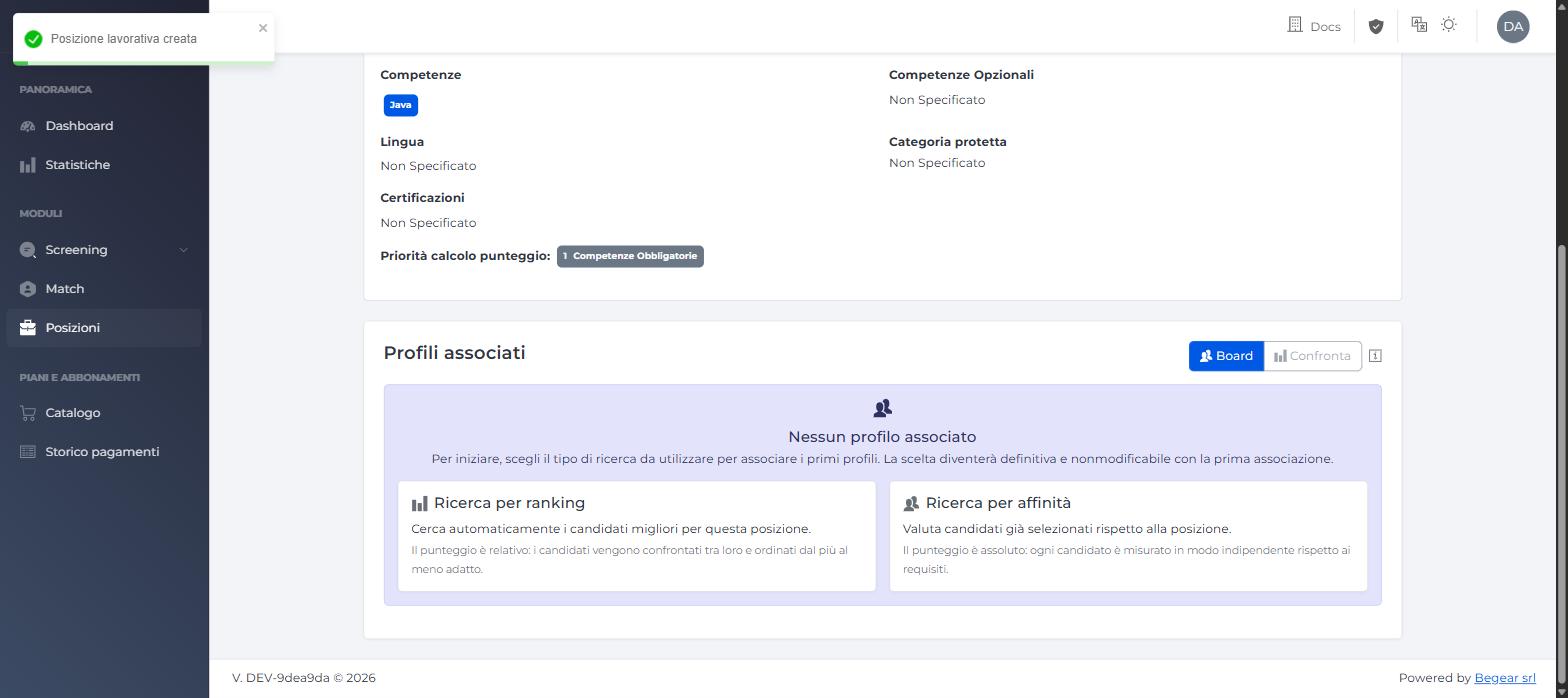
- Ranking search — automatically finds the best candidates for this position across your whole candidate database. The score is relative: candidates are compared to each other and ranked from most to least suitable.
- Affinity search — evaluates candidates you've already selected (from one or more upload batches, or ad hoc filter searches) against the position. The score is absolute: each candidate is measured independently against the requirements.
The choice becomes final once the first association completes: from that point the position has a Type (Ranking or Affinity, shown next to its status), the alternative mode is no longer available, and Matching criteria and Score priority follow different editing rules depending on the type — see Editing criteria after the first association.
Ranking search
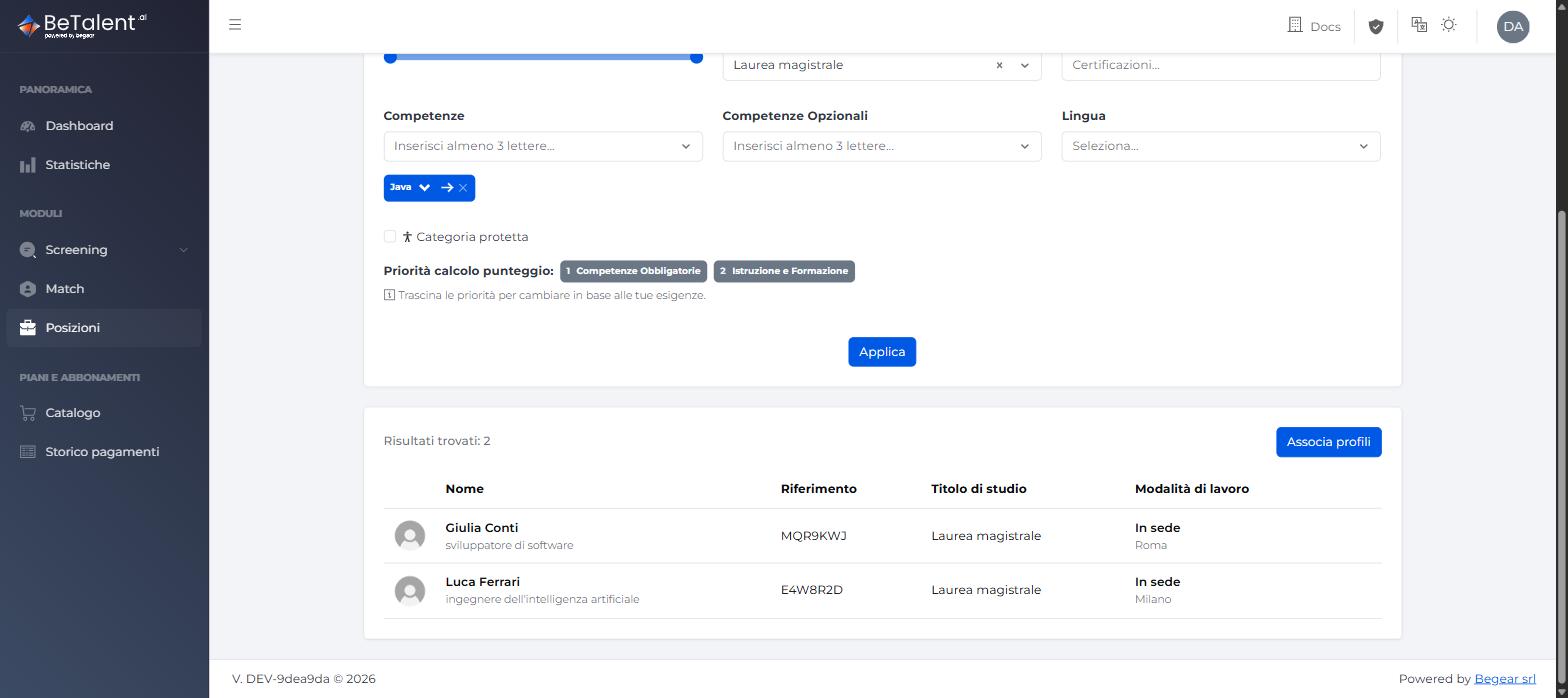
From the position detail, click Go to ranking search (the initial choice card before the first association, or a direct link once the position is of type Ranking).
-
Matching criteria and Score priority are pre-loaded from the position and stay editable on this page — drag priorities to change their order.
-
Click Apply to run the search and review the resulting candidates.
-
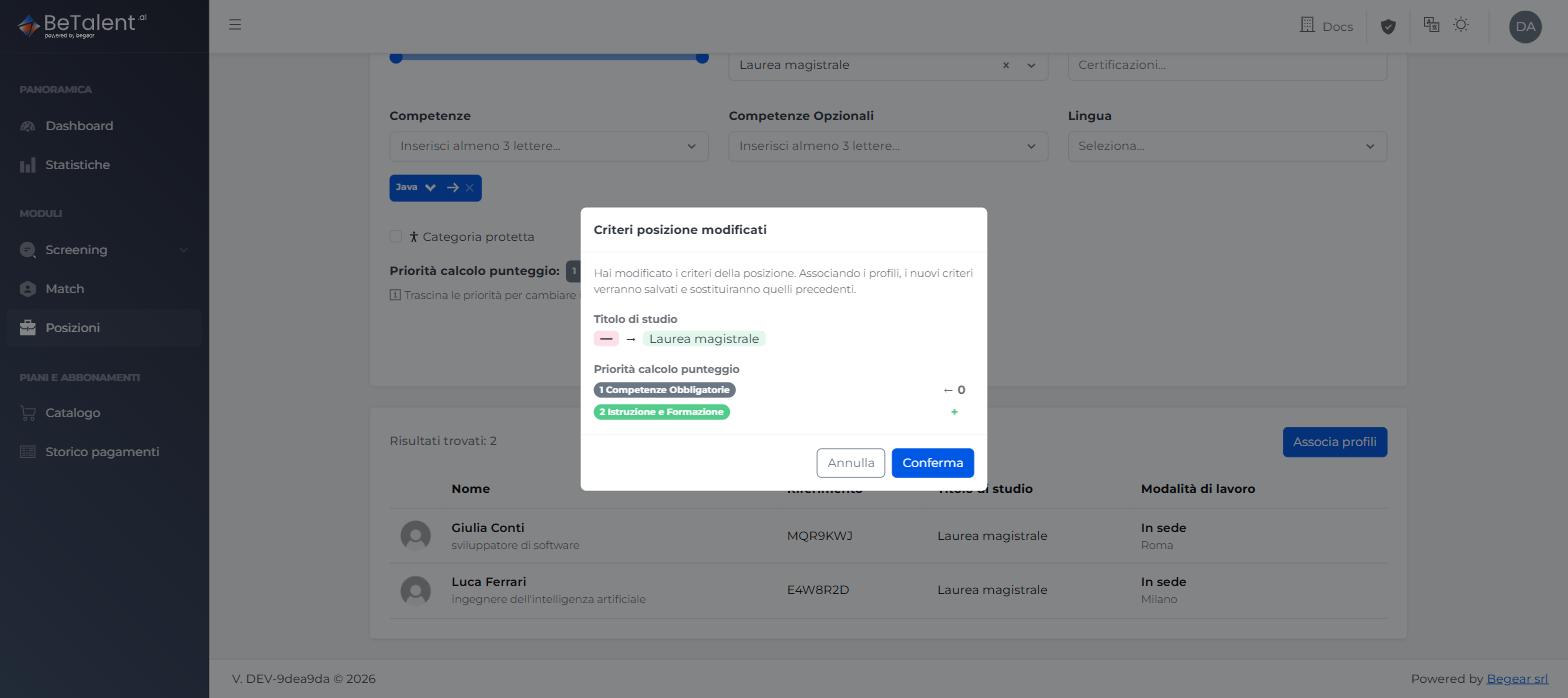
Click Associate profiles. If you changed criteria or priority compared to what's saved on the position, a summary modal (Position criteria changed) appears with a side-by-side comparison of the previous and new values, to confirm or cancel before proceeding.
-
All candidates found are associated at once (you can't cherry-pick a subset); each gets an automatic ranking and starts in status New. Confirming saves any changed criteria and priority on the position, replacing the previous ones.
A single search covers up to 2,000 candidates. Once associated, a candidate stays associated — to take one out of the running, change their status to Not Eligible rather than trying to remove them. You can re-run the search any time, even without changes: candidates found again keep their manual ranking, notes and status and get a refreshed automatic ranking; newly found candidates are added with status New; candidates from before that aren't found this time stay associated but get flagged as no longer matching the search filters.
Affinity search
From the position detail, click Go to affinity search. The position's matching criteria are shown at the top as a read-only reference: they aren't automatically applied to the searches on this page.
You can combine two kinds of search, each in its own tab:
- Uploads — searches only the upload batches you select (columns: Upload name, Upload date, Type, Status, Uploaded by). It's a single search: re-running it replaces its own results, it doesn't create a new tab.
- Search N — an independent filter search, with the same criteria panel available in Match — Searching Candidates. Click + New criteria search to open a new one (up to 14 in the same session) — each tab can be renamed or closed.
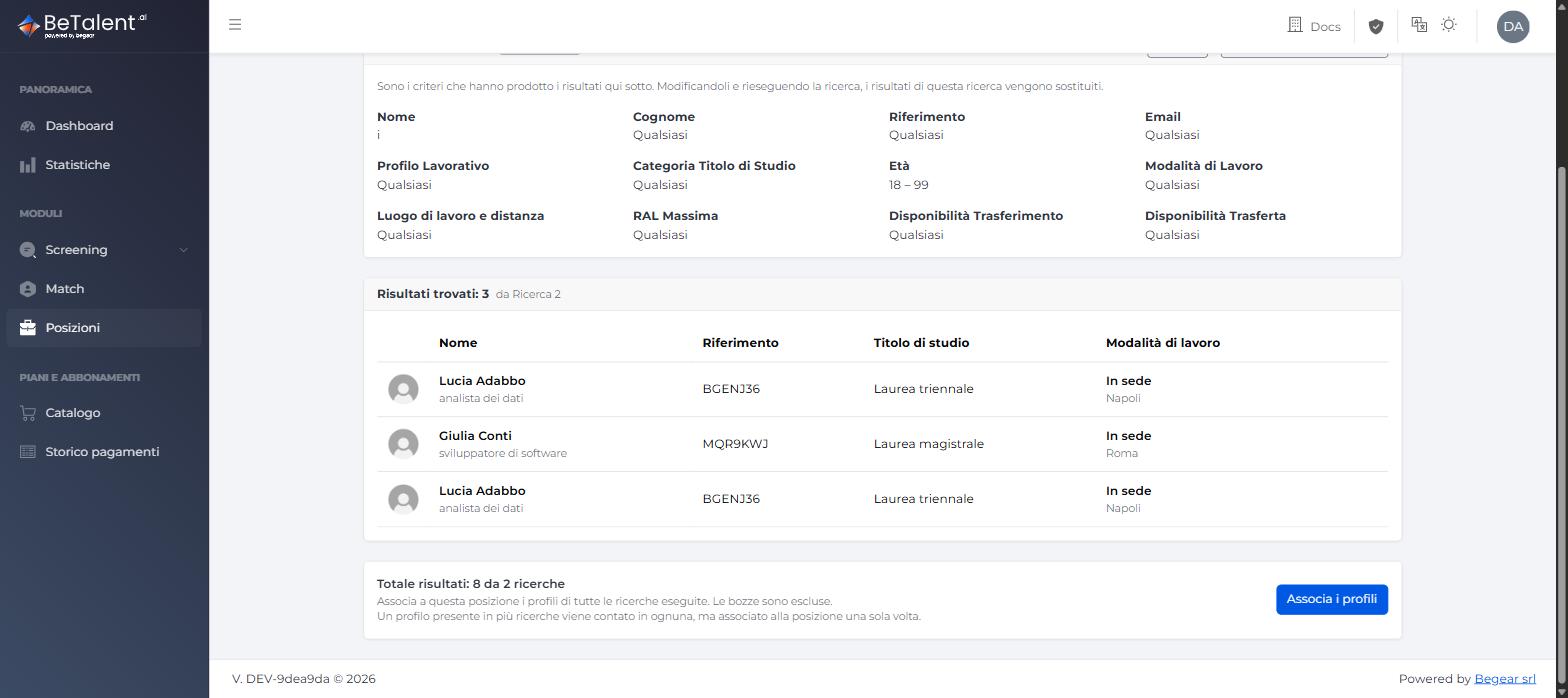
After clicking Apply on a tab, its criteria become read-only and the Edit (to change them and re-run, replacing only that tab's results) and Duplicate into a new search (to reuse the same criteria as a starting point in a new tab) buttons appear. At the bottom of the page, the results total sums the results of every tab you've already run in this session — a profile found by more than one search is counted in each. Click Associate profiles to associate, in a single step, the profiles from every search you've run: a profile found by more than one search is associated only once; tabs not yet run (and drafts) are left out.
Affinity can run on a position in any status. Every candidate included in a search gets scored, even those below the position's minimum requirements (just with a lower score) — unlike Ranking search, there's no 2,000-candidate limit per search. If you re-associate later, candidates already associated and still in scope keep their status, notes and manual ranking while their score refreshes; new candidates are added as New; candidates no longer found are left associated and unchanged.
Editing criteria after the first association
Once the position has a type, Matching criteria and Score priority follow different rules:
-
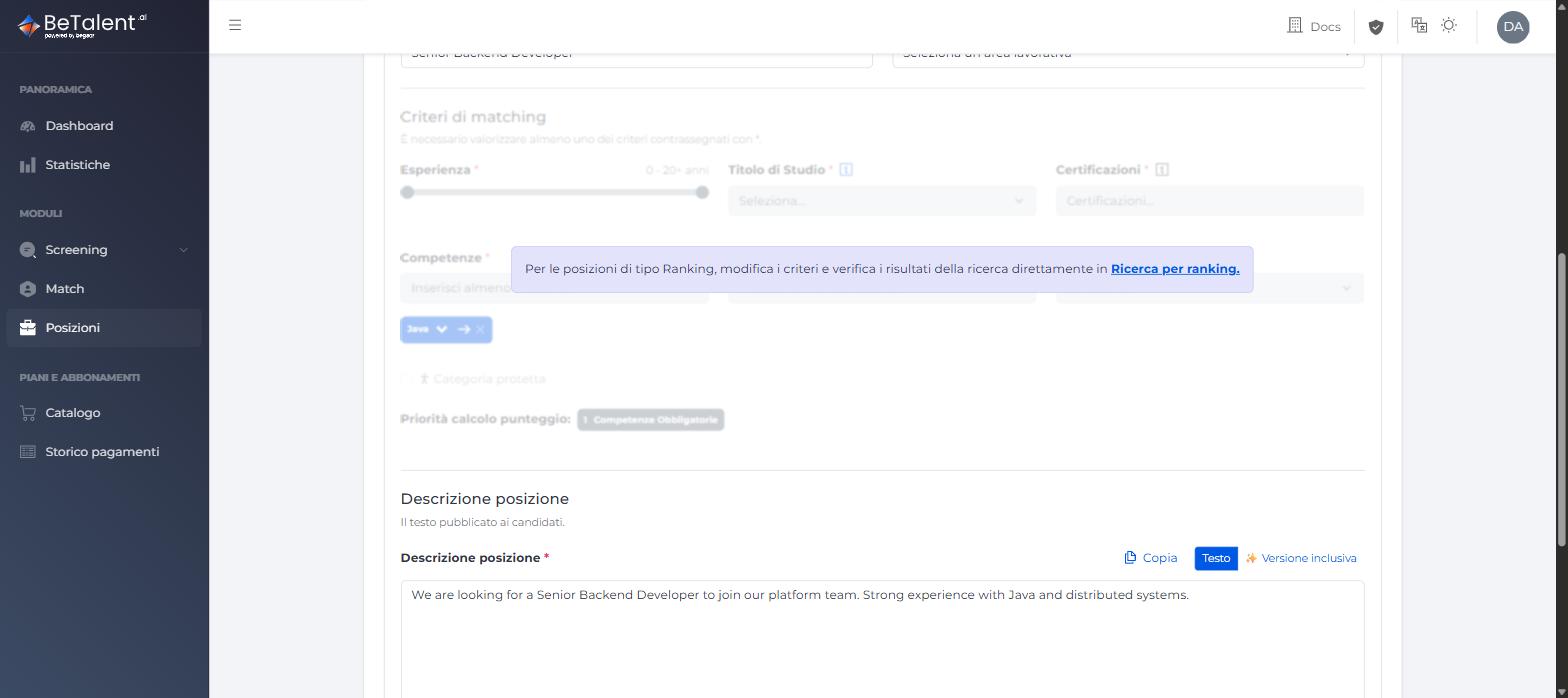
Ranking positions — are read-only on the normal position edit page, with a banner pointing to Ranking search: that's the only place to edit them, checking their effect on results right away (see above).
-
Affinity positions — stay editable directly on the normal position edit page. Saving a change to criteria or priority starts an asynchronous recalculation of the scores for already-associated candidates: during the recalculation the position can't be edited further; it becomes available again automatically once done, with no need to reload the page.
Duplicating a position
A position's type, once assigned, can't be changed. If you want to try the other association mode, click Use as template on the position's row in the position list: a new position opens with Company, Internal referent, Job area, Description and Matching criteria (score priority included) already copied from the source — only Position name is left to fill in — and the AI box starts directly in Review with AI mode. The source position isn't changed; the copy, having no associations yet, starts without a type and can freely use either Ranking or Affinity.
Managing Associated Candidates
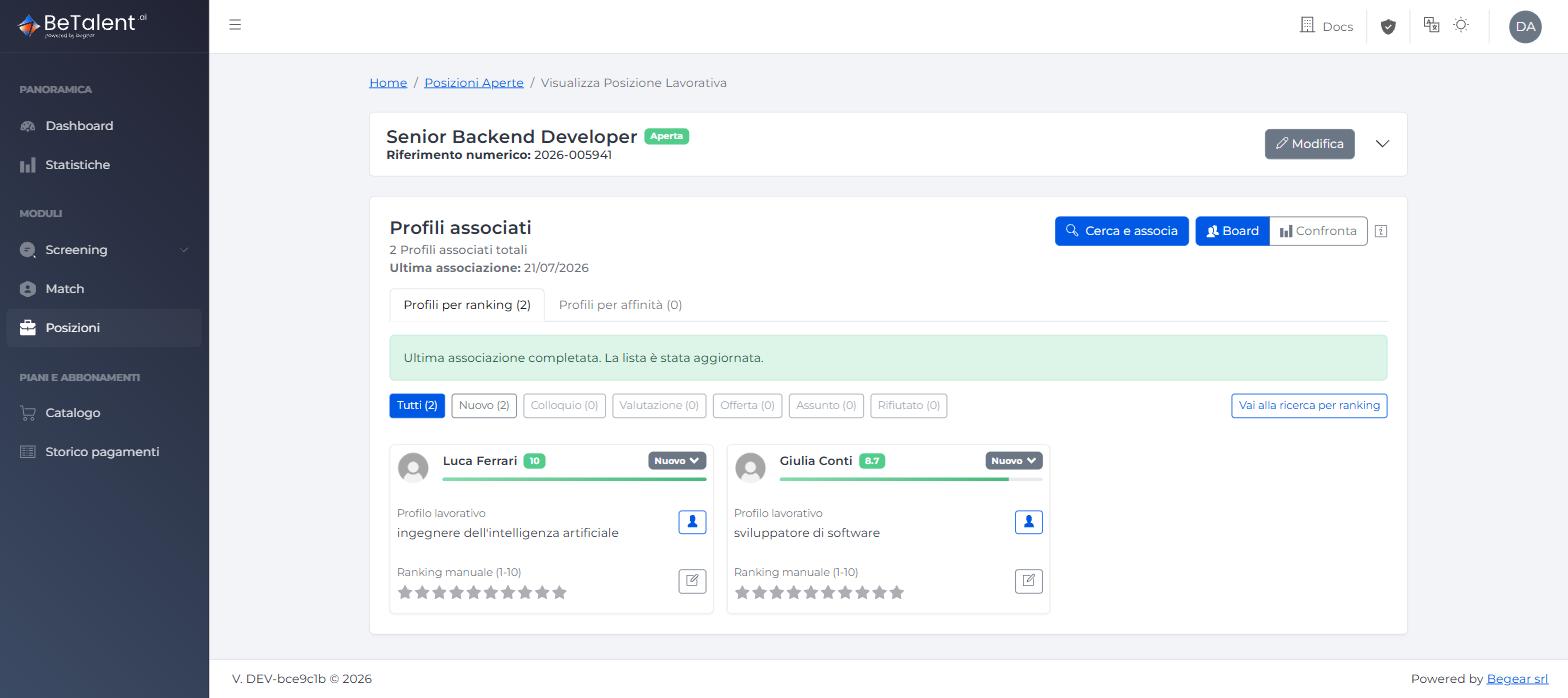
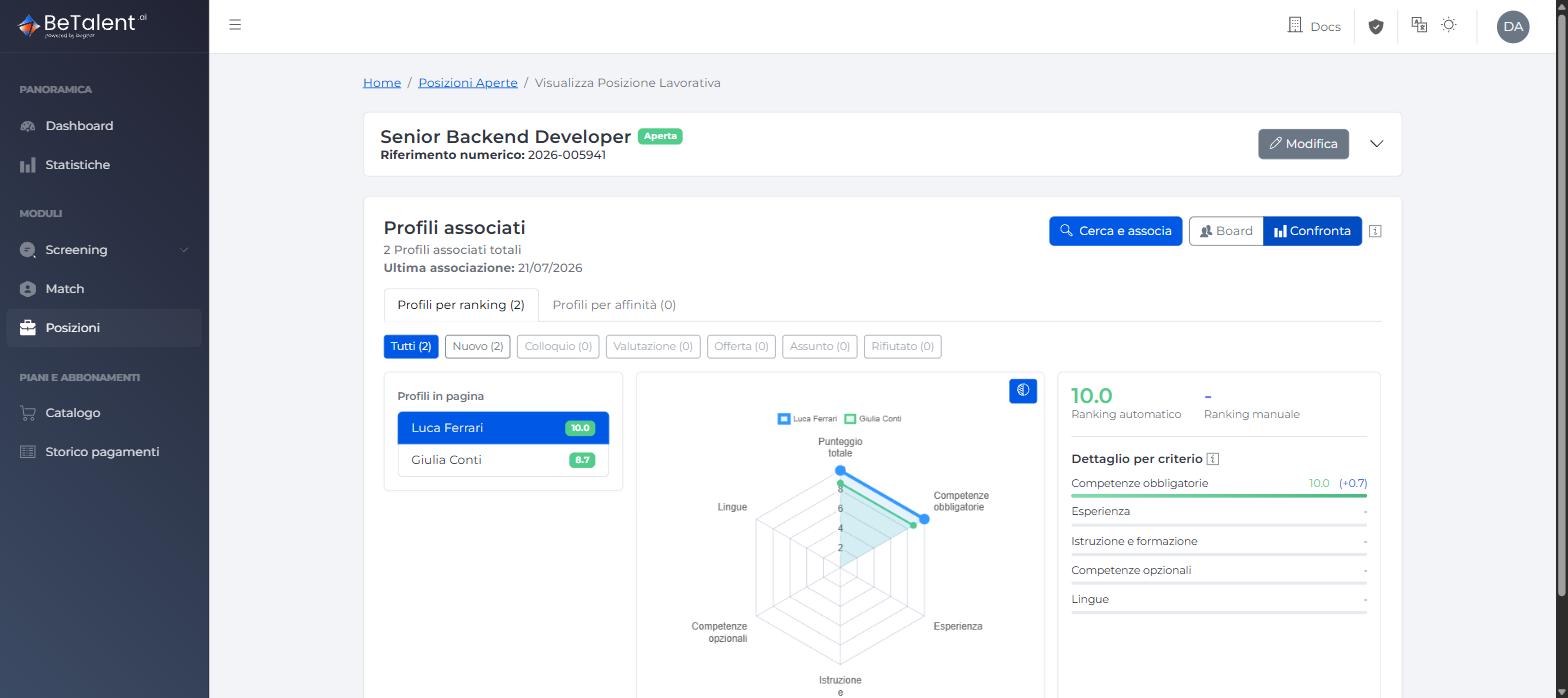
Once candidates are associated, use the Board / Compare toggle on the position:
-
Board — the working list of associated candidates, where you set manual ranking (1–10), interview notes, and status (New, Interview, Evaluation, Offer, Hired, or Not Eligible) for each one.
-
Compare — a side-by-side chart of automatic ranking, manual ranking and per-criterion scores; select a candidate from the list to highlight their scores and see the delta versus the others. This view needs at least two associated candidates to be usable.
From a Candidate's Profile
Open any candidate's profile to see every position they're associated with in your tenant (open or closed), and to read and edit all their interview notes across every position in one place — editing a note here updates the same note on the related position.
Related
- Job Position — Overview — concepts, and the full Ranking vs. Affinity comparison.
- Roles & Permissions — who can be chosen as the internal owner.