Screen — Browsing & Managing Profiles
This page covers the profile list (Screening → Profili) and the candidate detail page — where the data Screen extracted from each CV ends up. For a high-level introduction to the module, see Screen — Overview.
Profile List
The list shows every active profile in your tenant, sorted by creation date (newest first) and paginated. Each row shows the candidate's name, their unique reference code, job profile, and preferred work mode.
Click Filtri to open the filter panel:
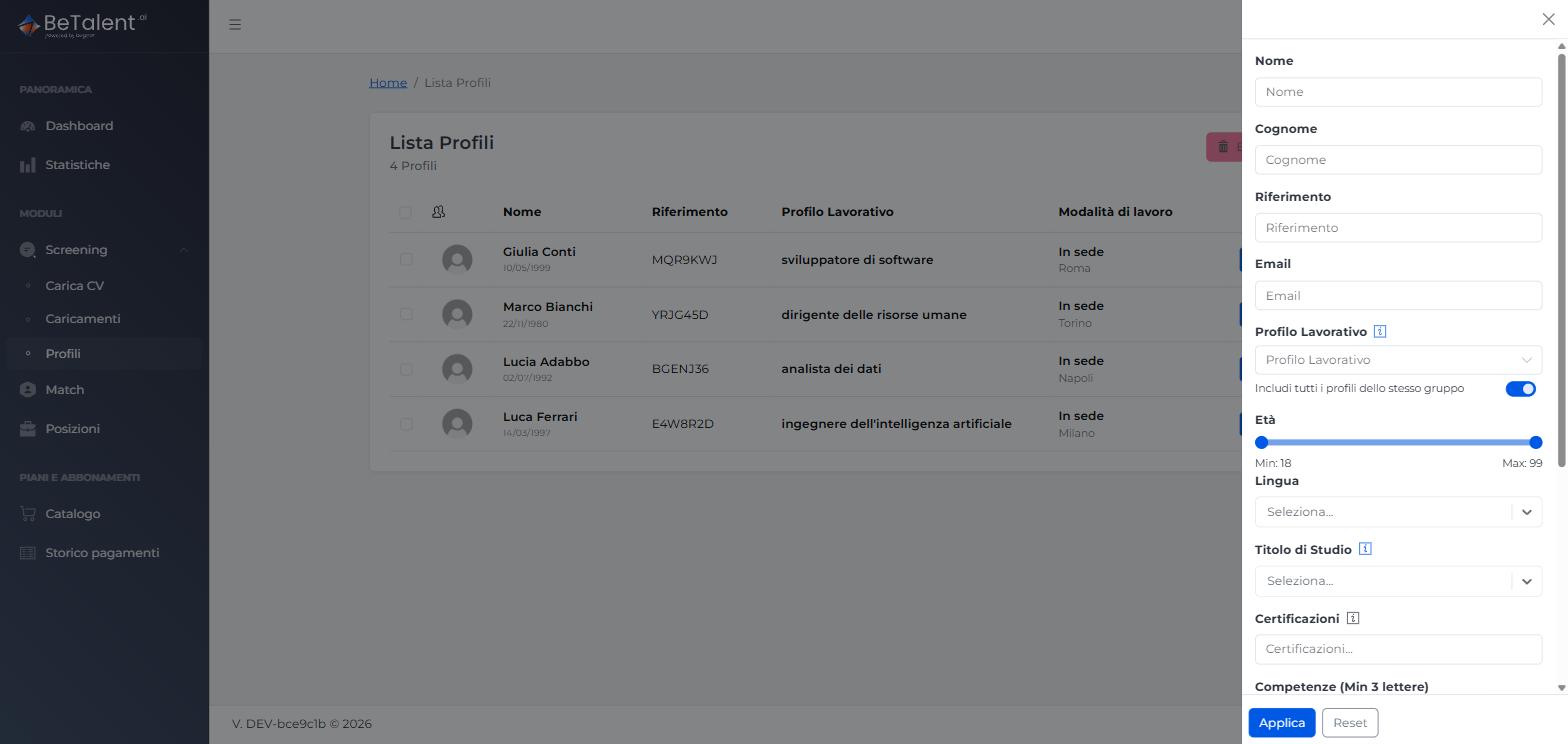
Available filters:
- Nome, Cognome, Riferimento, Email
- Profilo Lavorativo — with an "Includi tutti i profili dello stesso gruppo" toggle, on by default, to also match related job profiles in the same ESCO group
- Età (age range)
- Lingua
- Titolo di Studio
- Certificazioni
- Competenze (min. 3 characters)
- Modalità di Lavoro
- Località di lavoro and Distanza
- Checkboxes for Categoria Protetta, Disponibilità Trasferimento, and Disponibilità Trasferta
All filters combine with AND — a profile must satisfy every active criterion. Click Applica to run the search; active filters stay visible as badges above the table even with the panel closed, so you always know what's applied. Reset clears everything and returns to the default, unfiltered view.
You can select multiple rows with the checkboxes and delete them in bulk via the Elimina button. Each row also has its own actions: view the profile, upload/replace the CV inline (see Uploading & Managing CVs), or delete that one profile.
Profile Detail
Opening a profile shows an anagraphic card at the top and a set of collapsible sections below: Informazioni Personali, Informazioni Lavorative, Profili Lavorativi, Esperienza Lavorativa, Istruzione e Formazione, Competenze Linguistiche, and Competenze.
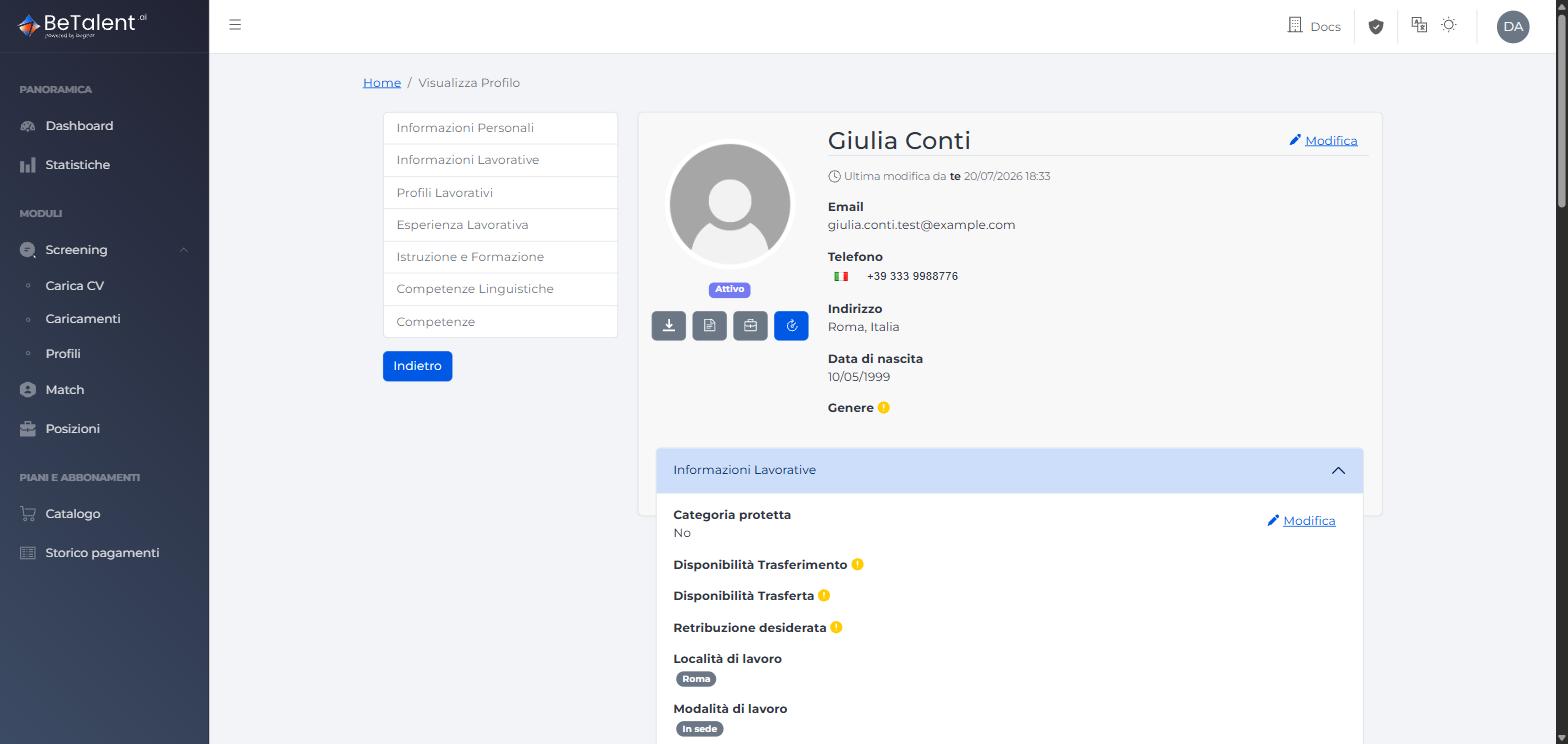
The card shows the candidate's photo (a placeholder avatar if the CV didn't contain one), an Attivo/Non Attivo status badge, and a line stating who last modified the profile and when — it reads "Ultima modifica da te" if you made the change, the name of the HR colleague who uploaded or edited it if someone else on your tenant did, or just a timestamp with no name if the update came from system processing. Fields the parser couldn't find in the CV are marked with a small warning icon instead of being left blank silently.
As HR, you can edit most fields (each has its own Modifica link) but not delete them outright, and you can't replace the candidate's photo — only view it. Once a profile is linked to a candidate who has registered on the platform themselves, HR can no longer edit its data at all.
Version History & Reactivating a Previous CV
Once a candidate has more than one version, the clock icon on their profile opens Storico Profili, listing every version with its status (Attivo / Non Attivo):
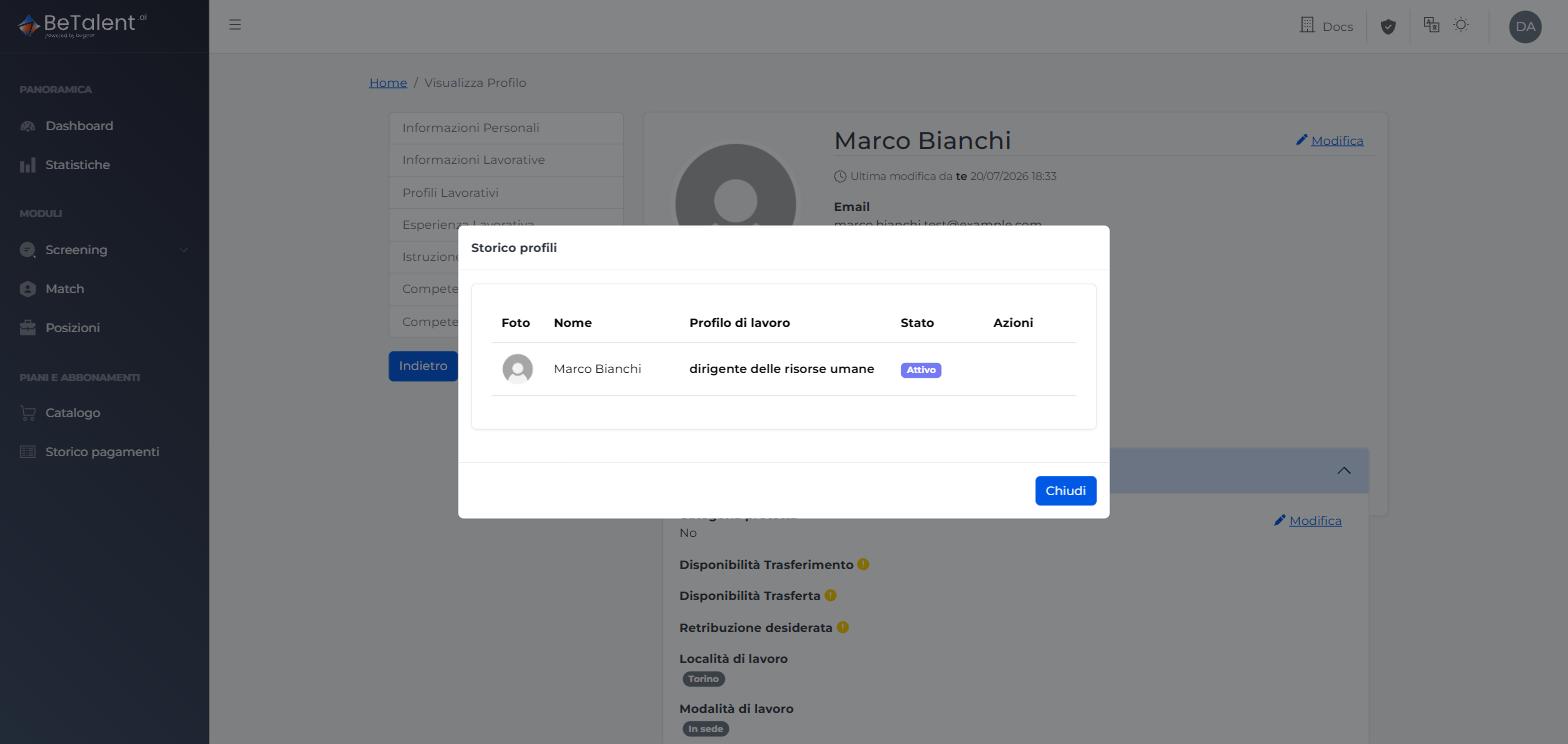
Only one version can be active at a time — it's the one used everywhere else in the platform (profile list, Match search, position associations). As HR, this view is read-only for you: reactivating or deleting a previous version isn't an action available to you.
Reactivating (as well as deleting) a previous version is reserved to the candidate themselves, on their own profile, once they've registered on the platform — consistent with what's noted above about editing data. It's the candidate who, opening an inactive version of their own profile, sees the banner offering to reactivate it; after a confirmation step, that version becomes active again and whichever version was active before is automatically deactivated. This is the only way to roll back to an earlier CV without re-uploading it.
Related
- Screen — Overview — what the module does and how it fits with Match.
- Uploading & Managing CVs — uploading CVs and tracking processing batches.
- Match — Searching Candidates — searching and ranking these same profiles against a role.