Catalog
This page walks through the self-service flow for purchasing a paid package for your tenant. For a short introduction, see Catalog — Overview.
Step 1 — Open the package catalog
In the left-hand menu, in the always-visible Plans & Subscriptions section, click Catalog. This opens the Catalog page, in Pay per Use mode (one-off purchase) — a Subscription mode is shown as "Coming Soon" and isn't selectable yet.
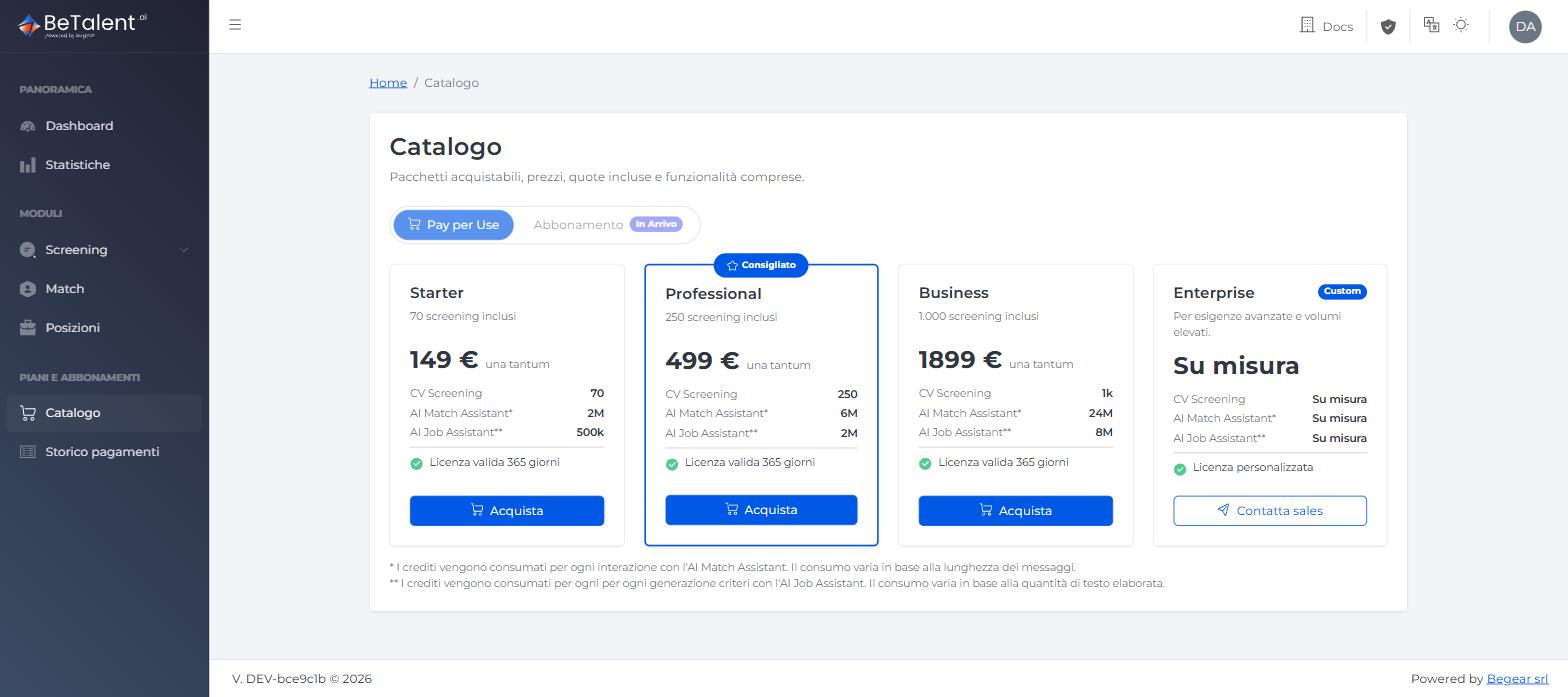
Four packages are available:
| Package | Price | Included CV Screening | Validity |
|---|---|---|---|
| Starter | €149 one-off | 70 | 365 days |
| Professional (recommended) | €499 one-off | 250 | 365 days |
| Business | €1,899 one-off | 1,000 | 365 days |
| Enterprise | Custom | Custom | Custom license |
Every package also includes a quota of AI Match Assistant and AI Job Assistant credits, consumed respectively for each interaction with the search assistant and each criteria-generation with the job creation assistant. The Enterprise package isn't purchased from here: the Contact sales button takes you to contact the sales team directly.
The packages, prices and included quotas listed above are illustrative examples: they can change over time. Always refer to what's shown on the Catalog page at the time of purchase.
Step 2 — Choose a package
Click Purchase on the card of the package you want. This opens the Purchase Summary.
Step 3 — Review the summary and your billing data
The Purchase Summary shows the details of the chosen package (price, included quotas, validity, "VAT excluded") and your current Billing Data.
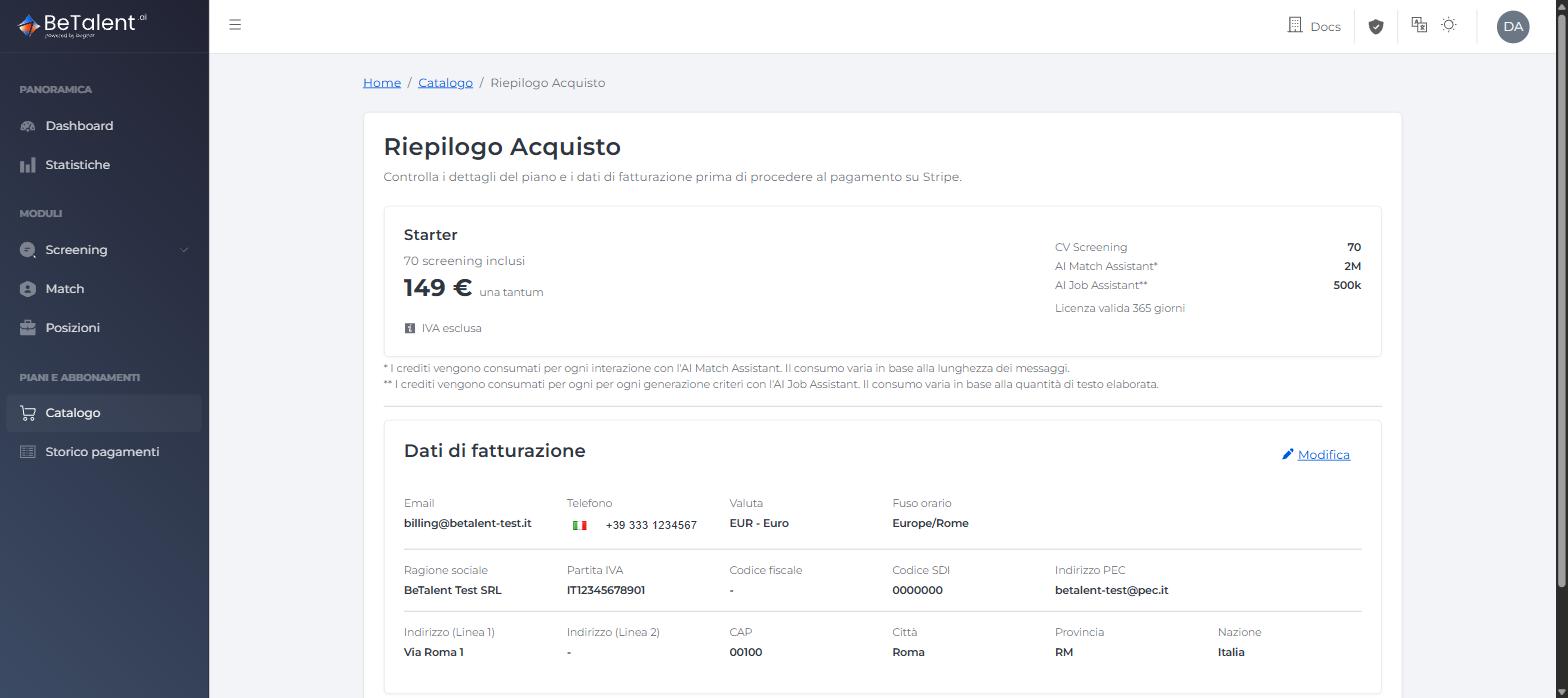
If this data is incomplete, you'll see a warning: "To proceed with payment, you need to complete your billing data." — and the Proceed to Payment button won't let you move forward. Click Edit to fill in the missing fields directly from this page (including, for Italian tenants, SDI code and PEC address, required here even though they're optional on the Billing page — see User Guide — Billing Data) and click Save. The warning disappears as soon as the data is complete.
Step 4 — Proceed to payment
Click Proceed to Payment. You're redirected to Stripe checkout, where you see the order summary with VAT calculated automatically (22% Italian rate for Italian tenants) and the total due.
Choose a payment method from those offered — Card, Klarna, Satispay, Bancontact and other methods available under "Other payment methods" — and complete the payment.
The payment methods listed above are illustrative examples: the actual list can change over time (methods added or removed). Always refer to what's offered in the Stripe checkout at the time of purchase.
Step 5 — Confirmation
Once payment succeeds, you're taken back to the BeTalent portal, to a Payment completed page, with the total paid, the purchased package, and a link to the Receipt. Your tenant's license is updated automatically: the package's quota is added to what was already available, and validity is extended — no further action is needed. You'll also receive an invoice by email, and the purchase shows up right away in Payment History.
Related
- User Guide — Billing Data — how to complete the data required before purchasing.
- User Guide — Payment History — where you'll find every purchase and its receipt.
- Roles & Permissions — who can purchase a package for the tenant.
- Dashboard — where you see the license's updated status after the purchase.